iPhone Lost and Getting Extorted to Turn Off Find My? That's Exactly When You Shouldn't
There are actually very few situations where Apple's Find My should be turned off — mainly when selling a device or sending it in for repair. But if your phone is genuinely lost or stolen, don't fall for extortion messages telling you to disable it.
There's a flood of similar posts on Reddit: someone loses their phone, and not long after, gets a message from a stranger demanding they turn off Find My — or else their personal data will be exposed, or some sob story gets spun about "this phone is for my sick kid" or something along those lines. These messages all have one goal: getting you to personally disable Activation Lock so the stolen iPhone can be resold. The answer is simple — don't do it.
The reason Find My gives thieves such a headache comes down to Activation Lock. This feature ties the device to your Apple Account, so as long as Find My stays on, even if someone factory resets the phone, it can't be activated without your account credentials — it's basically a brick. If you're worried about data leaking, you can remotely wipe the device through Find My or the iCloud website, but doing so won't turn off Find My or Activation Lock — the device stays locked and trackable.
There really aren't many situations that call for turning off Find My. Apple recommends disabling it before selling, transferring, or trading in a device, and the same goes for sending it in for repair — technicians need the device free of the security lock to run a full diagnostic.
The Easiest Way When Selling Your Phone: Just Do a Factory Reset
If you're selling or giving away your phone, the simplest route is Settings > General > Transfer or Reset iPhone > Erase All Content and Settings. The system will ask for your Apple Account password to confirm your identity, and the erase process automatically turns off Find My — no need to handle it manually.
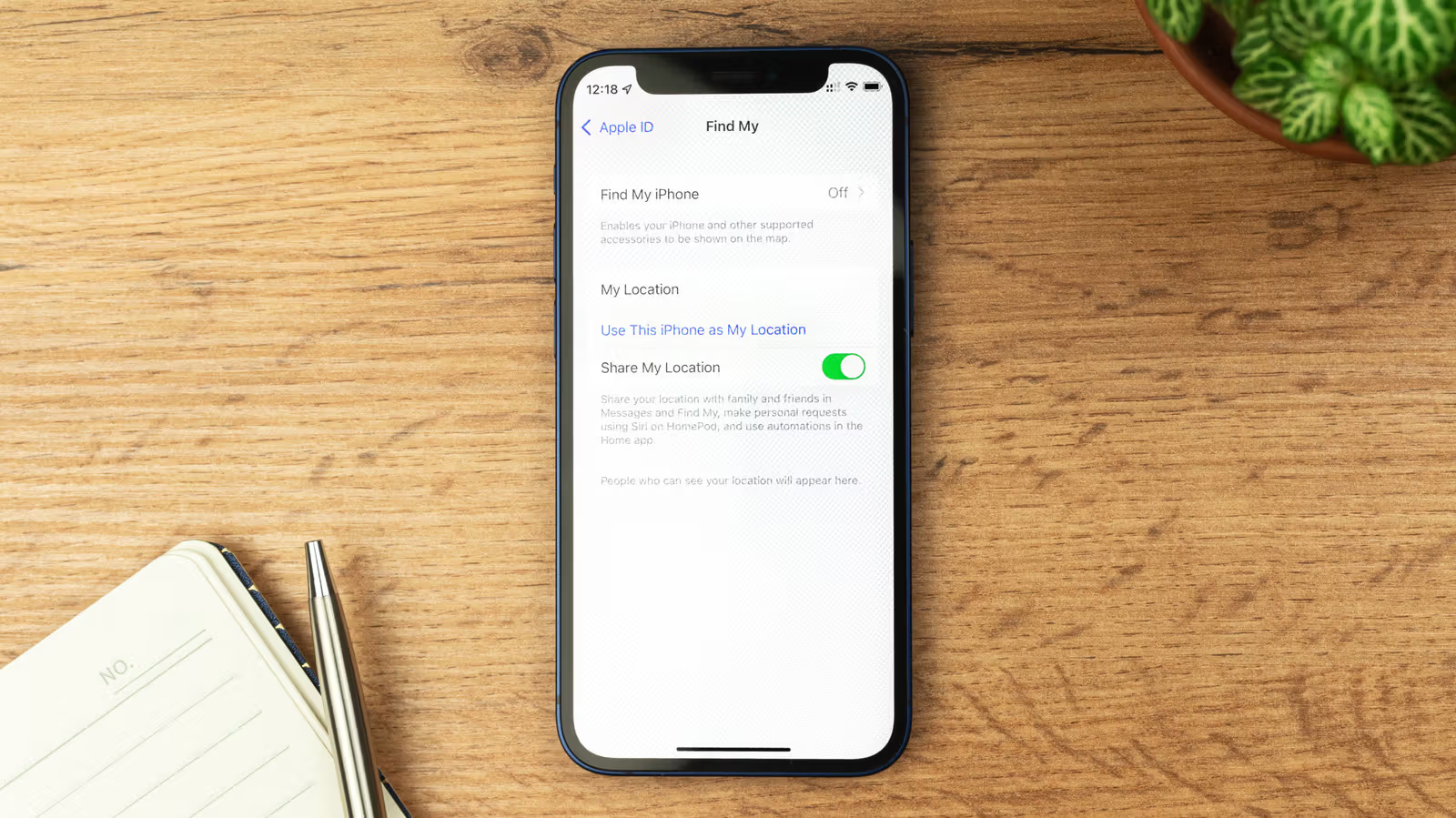
But if you're just sending it in for repair and plan to get it back, you'll need to do it manually: go to Settings > [Your Name] > Find My, tap Find My iPhone, and toggle it off. Here's where people often get stuck — since iOS 26.4, Stolen Device Protection is enabled by default, and when it's on, this toggle appears grayed out and can't be tapped. Stolen Device Protection is designed so that when your phone is away from familiar locations like home or work, viewing sensitive info like passwords requires Face ID or Touch ID, and changing critical settings like your Apple Account password comes with an added delay — preventing thieves from doing whatever they want even if they know your passcode.
To turn off Find My, you first need to go to Settings > Face ID & Passcode > Stolen Device Protection and disable it — it's best to do this at home to avoid triggering the security delay mentioned above. Once you get your phone back after repair, just go through the same steps to turn both features back on.
Find My also includes location sharing, and if you just don't want a specific friend seeing your location, you don't need to turn the whole thing off — just open the Find My app, go to the People tab, select that person, and tap Stop Sharing My Location. Unless they're running an older OS version, they won't get a notification saying you've stopped sharing — at most, they'll just notice your name is missing from the list later. Likewise, when you check someone else's location, they won't be notified either.
The most direct cost of turning off Find My is that if your phone is ever genuinely lost, you won't be able to check its location through another Apple device's Find My app or the iCloud website. Lost Mode — which displays a message and contact number on the lock screen — won't work either, and Activation Lock completely loses its protective power. So aside from situations like sending it to a trusted repair shop, keeping it turned on at all times is exactly how it's meant to be.