Android's Scam Detection Is Expanding to Samsung Devices, Starting With the Galaxy S26
Google's AI-powered call scam detection has so far been limited to Pixel devices, but the company has now confirmed it's expanding to the Samsung Galaxy S26. Beyond that, updates, two-factor authentication, Find Hub, and anti-theft locks are all easy-to-overlook pieces of Android's security toolkit.
A 2025 Pew Research Center survey found that nearly 75% of Americans have encountered some form of online scam. These attacks are getting harder to spot, partly because AI tools are now being used to fake the voices of friends and family in scam calls — a tactic known as vishing, where a voice that sounds like a loved one crying for help might actually just be the product of an algorithm.
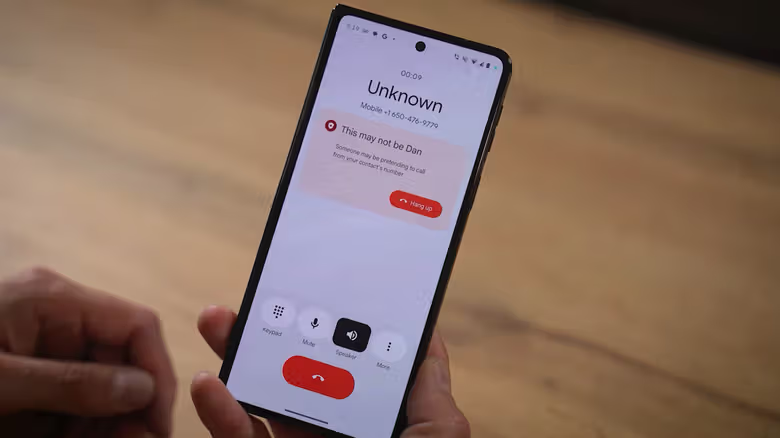
Over the past few years, Android has been quietly baking detection tools into the system, and the one worth paying attention to is Scam Detection. The feature uses Google's Gemini AI model to analyze call content, and Google describes it as being able to catch "subtle conversation patterns found in job scams or romance scams." Since it involves listening in on calls, the feature is off by default — you'll need to open the Phone app, tap the menu in the top left, go to Settings, and toggle on Scam Detection. Right now it's exclusive to the Google Pixel lineup, but Google has said it plans to bring the detection capability to other brands' phones, with the Samsung Galaxy S26 first in line.
There's a similar system for text messages, but it's on by default and only applies to conversations with numbers not in your contacts. Google says the algorithm runs entirely on-device, meaning nothing gets uploaded to the cloud or any external database. If you'd rather your phone not scan your messages at all, you can go into Messages, tap your profile icon, head to Protection & Safety, and turn off Spam protection.
Updates and Account Protection Are the Basics People Skip Most Often
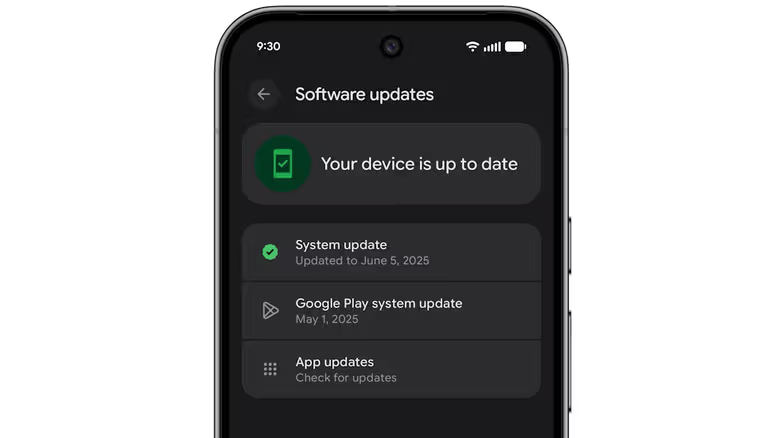
Compared to AI detection, updates are actually the step people neglect the most. Opening About Phone under Settings shows your current Android version and security status, while system updates live under Settings > System > Software Updates — a yellow arrow icon means there's an update waiting to be installed. App-level updates are tucked into the profile menu in Google Play, where you can also set rules for auto-updates based on Wi-Fi or mobile data.
The key to account security is turning on two-factor authentication for your Google account, which you'll find under Security & sign-in on your Google Account management page. It's also worth turning on Settings > Google > Backup, so your data doesn't disappear along with a lost device. Android's built-in Find Hub app can locate your phone, make it ring, or wipe your personal data remotely — but first you need to enable location permissions under Settings > Location, then confirm that Allow device to be located is turned on under Settings > Security > Find Hub.
If Your Phone Actually Gets Stolen, Android Has a Whole Lineup of Lockdown Tools
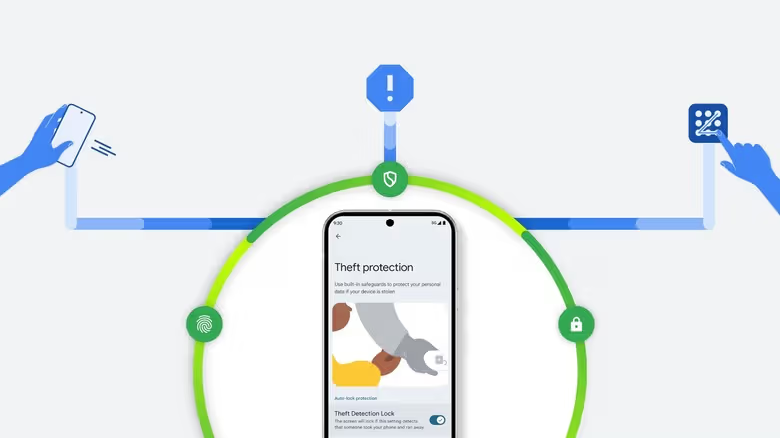
Under Settings > Google > All services, the Theft protection section brings together several more advanced anti-theft features. Theft Detection Lock uses the phone's Wi-Fi, Bluetooth, and motion sensors to detect whether someone has forcibly snatched the device, while Offline Device Lock automatically locks the screen if someone tries to cut the phone off from the network to dodge Find Hub tracking. In the same menu, Failed Authentication Lock prevents repeated PIN-guessing attempts, and Identity Check requires biometric verification before anyone can change key security settings like your password or two-factor authentication.
There's also Remote Lock, which requires the phone to have an active SIM card, a verified phone number, and Find Hub turned on. Once enabled, even if the device is stolen, as long as it reconnects to the network, you can go to android.com/lock, enter the phone number, and lock the screen remotely — you can also set up a security question in the same menu.
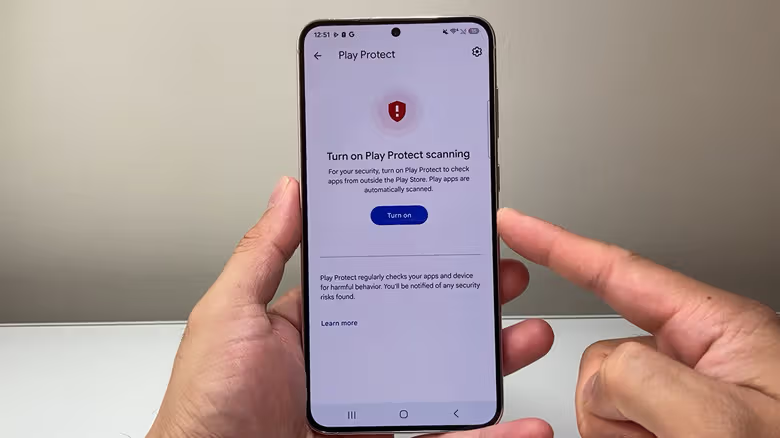
On the app side, Google Play Protect scans apps by default at download time and periodically checks the device for lurking malware — you can check its status under Play Protect > Settings in the Play Store's profile menu. For anyone who wants finer control over their personal data, heading to Settings > Security & Privacy > Privacy > Permission manager lets you review which apps have access to specific permission types (like call logs, texts, or photos) one by one. Meanwhile, Ad topics and Ad measurement under Settings > Google > Ads privacy let you decide whether your phone shares your usage habits with advertisers.