Bluetooth headset suddenly becomes unresponsive and makes loud noise? Turning off this Android hidden option will solve the problem
When pressing the volume button on an Android phone, there is no response, but the sound suddenly crackles the next second. The problem may be caused by the system's built-in Absolute Bluetooth Volume function. There is a switch in the developer options that can solve the problem.
After pressing the volume button several times, there was no movement, and then the music suddenly reached its maximum volume without any warning - this was not because the phone was broken, nor was the Bluetooth headset malfunctioning. Engadget reports that this is a feature built into all models after Android 6.0, called Absolute Bluetooth Volume.
The original design intention of this function is very simple: let the volume keys of the mobile phone directly and synchronously control the connected Bluetooth device, whether it is headphones, speakers or car audio, the user does not need to adjust the volume of both sides separately. According to the Android Open Source Project, the mobile phone will send "unattenuated" sound source and volume information to the receiver, and the receiver will amplify the audio based on this information - in other words, the phone directly tells the headset how loud it should be, instead of letting the headset manage the volume on its own.
The problem is that the volume scale of each mobile phone and each Bluetooth device is not consistent. The mobile phone may only have 15 volume levels, but the Bluetooth speaker has 100 levels. When trying to match the two sides, the math will go wrong, creating a "dead zone" where the buttons do not respond, and then suddenly jump to an uncomfortable volume level. Some Bluetooth devices will also add a hearing protection upper limit when synchronizing this function, causing the output volume to be suppressed below the actual volume that the hardware can achieve.
After turning off this function, the volume of the mobile phone and the Bluetooth device will operate independently, and both sides can be pushed to their respective maximum values. Contents with a large dynamic range such as podcasts, audiobooks, or music can also be controlled in a more detailed manner. For example, the volume of the mobile phone can be adjusted to the maximum and the volume can be adjusted directly with the headset itself. But the price is to manage the two sets of volumes separately. If the headset does not have physical volume keys, it is meaningless, and if the phone and the device are turned to the maximum at the same time, there is also the risk of hearing damage.
Close steps
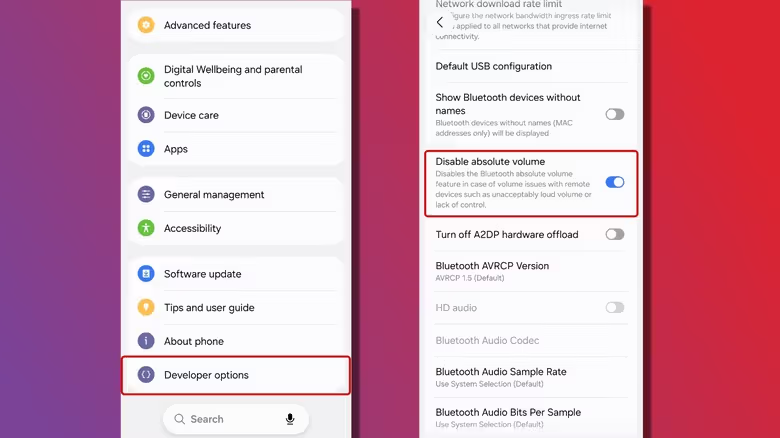
To turn off this feature, you must first unlock developer options. Go to Settings, find "About Phone" (some models are in the system settings), find "Build Number" (Samsung models are in the software information about the phone), click seven times in quick succession, and enter the PIN or password as prompted. The system will pop up a message to confirm that the developer function is turned on.
Then go to the Developer Options in the settings, scroll down to the "Network" section, find the "Disable Absolute Volume" option and turn on the switch. After completion, you need to restart your phone or disconnect and reconnect the Bluetooth device for the settings to take effect.
This isn't a setting that everyone needs to adjust, but if your Bluetooth headphones or speakers are experiencing unstable volume, this is a simple troubleshooting step that doesn't require a third-party app.