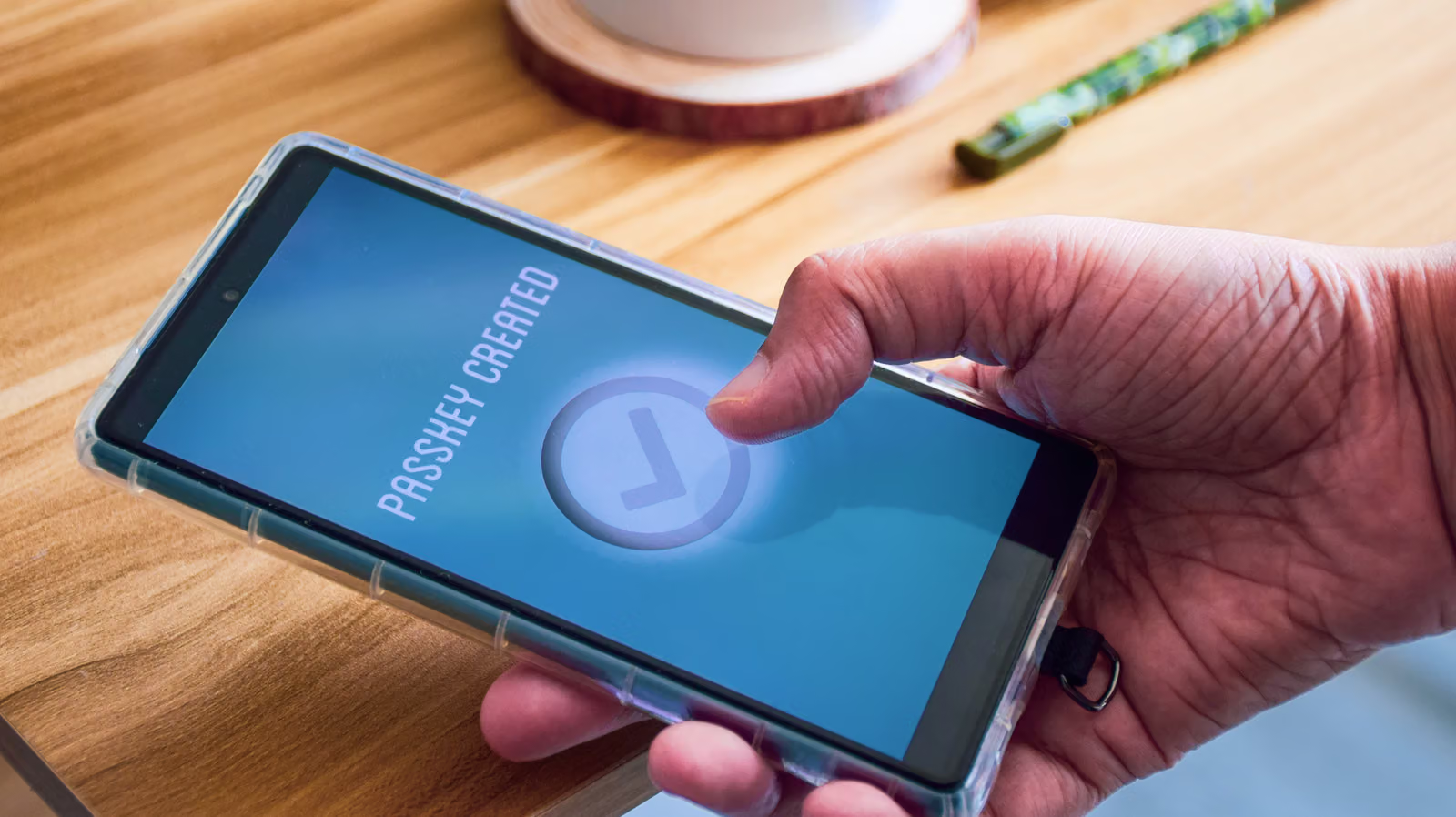
Can Passkeys Really Replace Passwords? Understand What They Fix — and What New Headaches They Bring
Password managers can stop weak or reused passwords, but they can't block phishing sites. Passkeys flip the logic, shifting security responsibility from "what you remember" to "what device you have" — but that also brings new limitations around cross-device use and sharing.
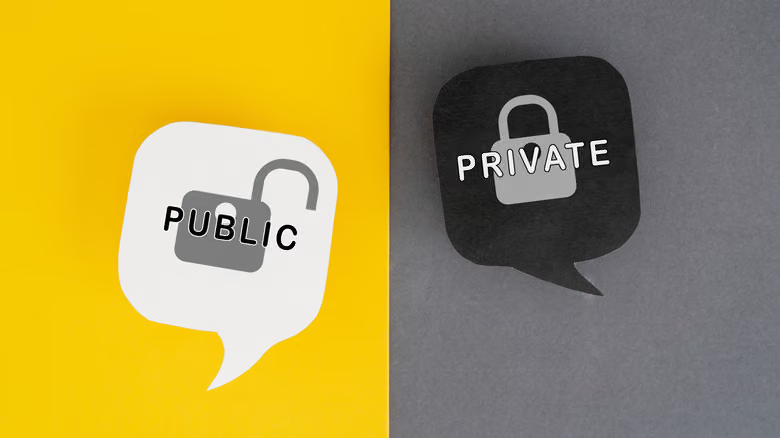
Think of a Passkey like a mailbox with a double lock: anyone can drop a letter through the public slot, but only the person holding the private key can open it and verify identity. That's the analogy a tech media explainer recently used to describe how Passkeys work — the public key sits with the website, while the private key stays locked on your device. Neither works without the other.
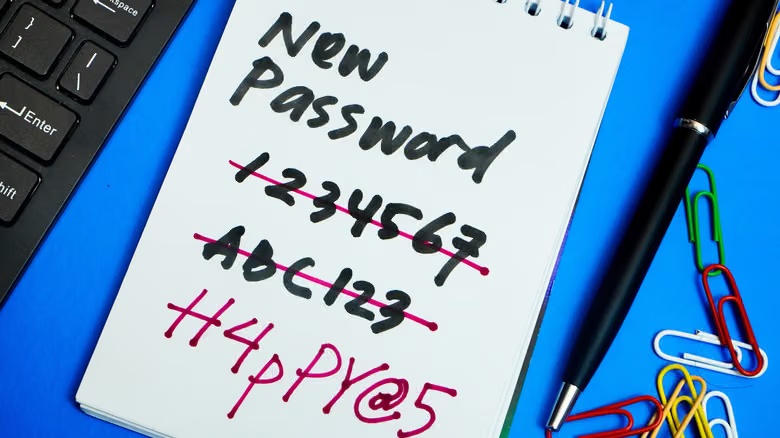
The problems with traditional passwords are familiar to everyone: websites shouldn't store passwords in plain text, so they run them through a hashing process and add a random "salt" so identical passwords produce different hash results, reducing the risk of the database being reversed if leaked. But the flaw isn't in the algorithm — it's in people. Most people reuse the same weak password across different services for the sake of convenience, and phishing sites exploit exactly that, tricking users into voluntarily "handing over" their password.
How Passkeys Patch the Weak Spot
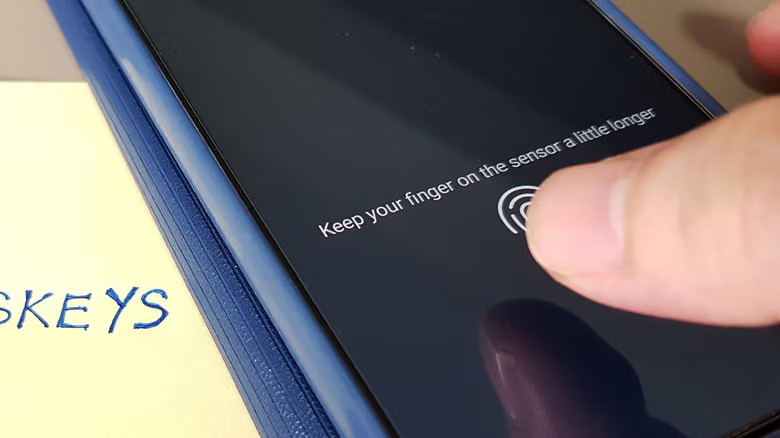
Passkeys don't require you to remember any text. When logging in, the website asks your device to complete verification using the private key that corresponds to a public key — that private key is stored in a protected area on your phone or computer, unlocked by Face ID, Windows Hello PIN, or fingerprint recognition. In other words, you need both "possession of the device" and "knowledge of the PIN or biometric" at the same time — effectively achieving in one step the security level that used to require two-factor authentication.
More critically, a Passkey is bound to a specific domain when it's created, so even if you open a fake site that looks identical to the real one, your device simply won't hand over the private key — fundamentally rendering the whole act of "typing your password into a phishing page" meaningless. And since Passkeys are required by spec to be high-strength, there's no such thing as "setting a simple Passkey." If a database leaks, all attackers get is the public key — which was never a secret to begin with.
Where It's Stored Is Where the Real Trouble Begins
The trade-off with Passkeys is that they're tied to a device or piece of software — lose the device or switch systems, and you'll hit a wall. iOS and macOS save them by default in Apple Passwords, Android relies on Google Password Manager, Windows 11 keeps them under Settings > Accounts > Passkeys, and Linux currently has no native support at all. If your devices are spread across different ecosystems, keeping all your Passkeys locked into a single system's app makes logging in from another phone a hassle. Some services do offer QR-code cross-device login, but it's not always smooth.
Sharing is another real-world limitation. Telling someone you trust your password used to be as simple as saying it out loud — getting Passkeys to be just as convenient requires a password manager that supports shared vaults; built-in device solutions alone can't do it. For these reasons, consolidating your Passkeys into a password manager that supports multi-platform syncing is more practical than relying on each system's scattered default tools. If you want to go a step further, you can also store Passkeys on a physical security key like a YubiKey.
For now, most services still let Passkeys coexist with passwords. In some cases, the Passkey replaces the password entirely; in others, it's an added layer rather than a replacement — and if your account falls into the latter category, don't forget that password still needs to be strong, or the whole system will still be dragged down by its weakest link.