Android App Keeps Crashing? Don't Smash Your Phone Yet—Try This Troubleshooting Order First
From clearing cache to installing an older APK version, when an Android app crashes you can troubleshoot step by step—in most cases, you don't need to factory reset the whole phone.
When an app keeps crashing, most people's first instinct is that the phone itself is broken—but the reality is often the opposite. Engadget writer Adnan Ahmed shares his years of Android experience, noting that crashes usually stem from a "buggy update" rather than an actual hardware issue. That means the first step when something goes wrong shouldn't be reflashing the system—it should be checking the app itself.
The quickest way to check is to tap your profile icon in the top right corner of the Google Play Store, select "Manage apps and device," and see whether the misbehaving app shows up under "Updates available." If there's no update waiting to be installed, move on to the next step.
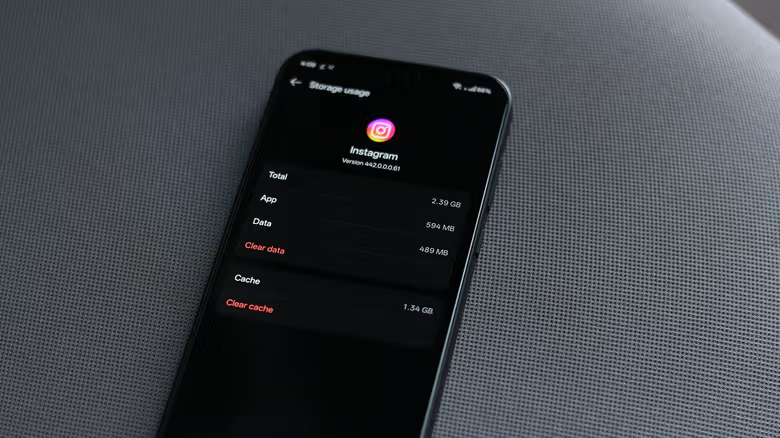
Next, try long-pressing the app's icon on your home screen or in the app drawer, then tap the lowercase "i" to open the "App info" page—or find it by going through Settings > Apps (the exact wording may vary slightly depending on your Android version). Once you're in, tap "Storage & cache," select "Clear cache," go back, tap "Force stop," and then relaunch the app. Clearing the cache removes temporary files that may have become corrupted. This per-app cache management system has been a staple of Android for years, and it can also give a sluggish app a bit of a speed boost.
If clearing the cache and force-stopping don't do the trick, the next step is to fully uninstall the app and redownload it from the Play Store. The downside is that all locally stored data gets wiped too, including login credentials, media files, and other preferences. If the app supports cloud sync, logging back in should restore your data; but if you haven't set up cloud backup, do that before uninstalling. Another option is to just tap "Clear data" on the App Info page, which skips the redownload step—though if your connection is fast enough, a fresh install from the Play Store is actually the more thorough fix for persistent crashes.
You shouldn't need to restart your phone often, but when something's wrong, it's a surprisingly effective quick fix. On most Android phones, you can force a restart by holding down the power button until the screen goes black and the brand logo appears; some models may require holding the volume up or down button at the same time. It's also worth checking whether there's a system update available—go to Settings > System > Software update and install anything pending. These updates bring new features but also include the latest bug fixes and security patches, some of which might resolve system-level issues causing the app to crash.
One notable trait of Android is that sideloading apps is relatively easy, though Google has been tightening security around it. On newer versions of Android, you'll first need to go to Settings > About phone and tap "Build number" seven times to enable developer mode. The phone will then require a restart as a security measure, and you'll need to wait a day before it allows installs from unknown sources—a one-time security process designed to prevent social engineering attacks.
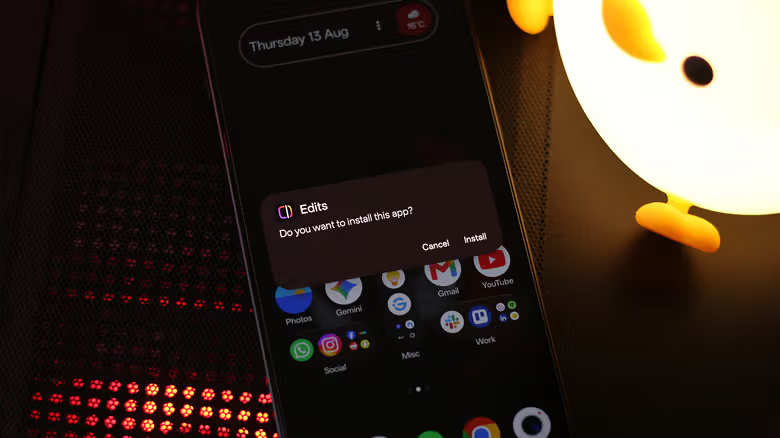
Once that's set up, you can download an older, stable version of the problematic app. The author recommends using APKMirror to find the installer, as it's a source he trusts. First, uninstall the app currently on your phone, then use a file manager to open the APK and install the older version; some apps that use split APKs may require the APKMirror Installer app to complete installation. Keep in mind this is only a temporary workaround—once the developer releases a bug-fixed update, you'll still need to remove the app and reinstall it from the Play Store to keep receiving future updates properly.
If all these steps feel like too much hassle, you can also just switch to using the app's web version in your browser as a stopgap. Most popular apps have web versions that are well-optimized for mobile browsers, and some even let you enable notifications or pin the site to your home screen for quick access later.