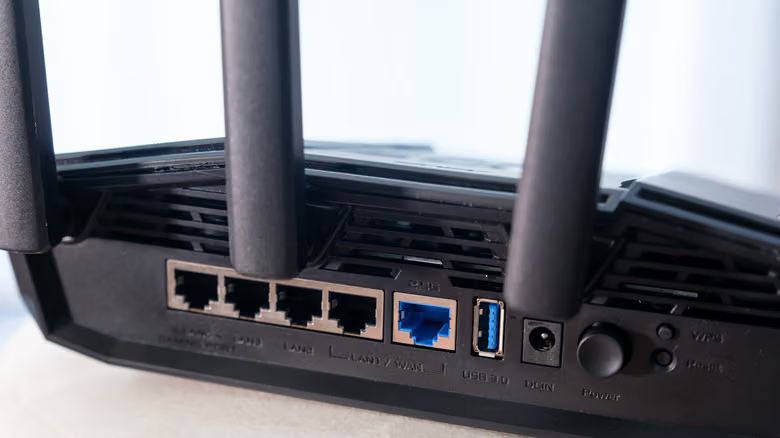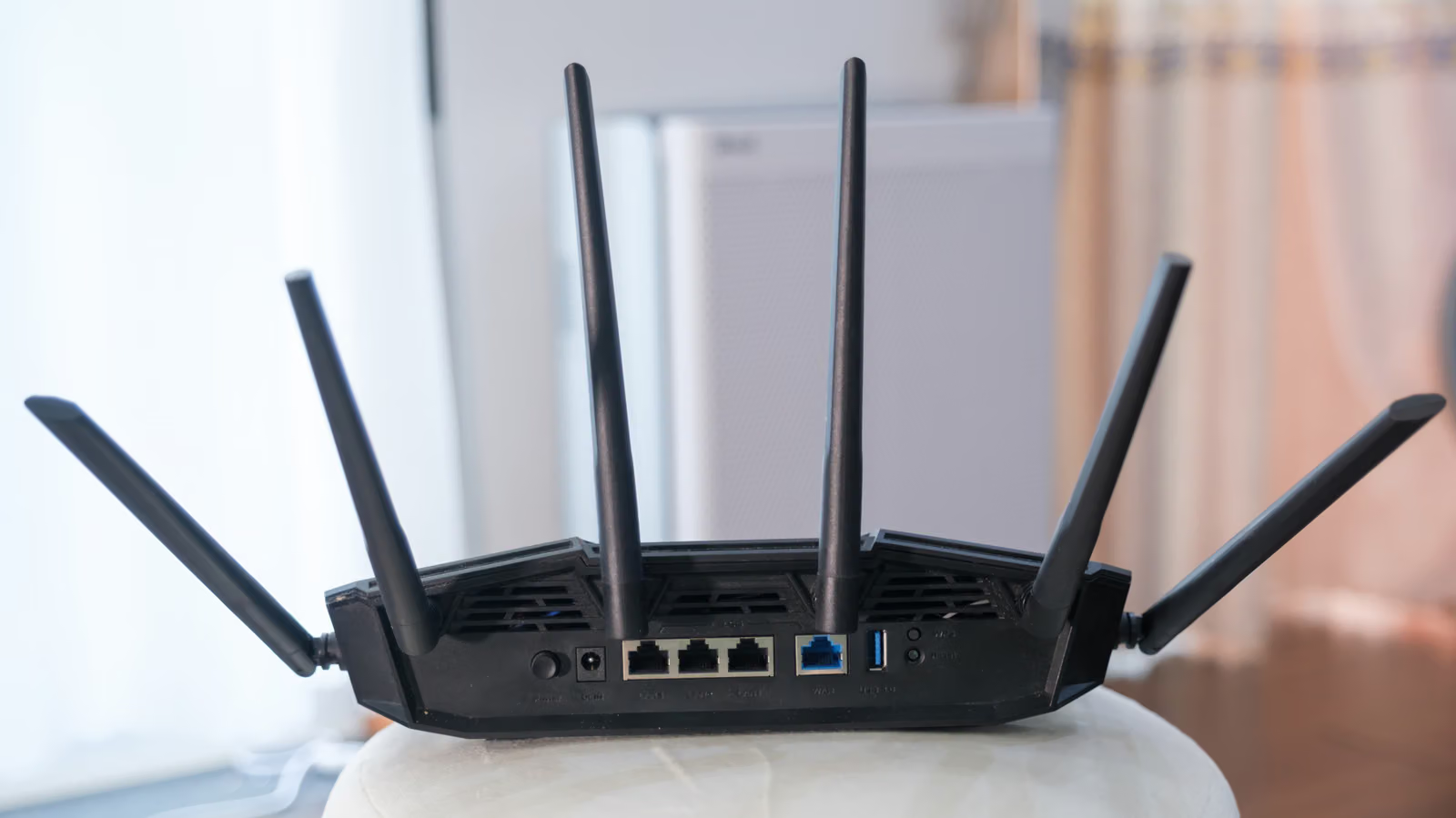
The most frustrating thing about router problems isn't that it's broken—it's not knowing whether you should reboot, reset, or just call customer support. ASUS's answer is pretty blunt: a reset fixes most issues. But that button isn't a cure-all. The moment you press it, every custom setting, AiProtection log, Traffic Analyzer data, and Web History gets wiped clean, back to factory defaults.

So before you do anything, take one step first: write down or screenshot your account credentials and any settings you want to keep. If you've forgotten your password, the default login is usually printed on a sticker on the back or bottom of the router. Just keep in mind—once you've changed the credentials, there's no going back to the factory defaults.
Method 1: Via the Web Interface or App
If you can still log into the settings page, this is the cleaner route. Type http://www.asusrouter.com into your browser, or use the LAN IP address printed on the back of the router (e.g., 192.168.50.1) to access the admin panel. After logging in, find Administration in the bottom-left corner, click into the Restore/Save/Upload Setting tab under Advanced Settings. You'll see three options with yellow text—select the black Restore button, confirm, and wait for the router to reboot. During this process, ASUS specifically warns: don't close your browser, and don't unplug the power.