Once the phone is missing, the digital wallet will be locked within minutes: Android and iPhone practical methods
Credit cards, boarding passes, car keys, and ID cards may all be stored in your mobile phone. When your phone is lost, it is more urgent to lock your Google Wallet or Apple Wallet than to recover the device. Here are the practical steps.
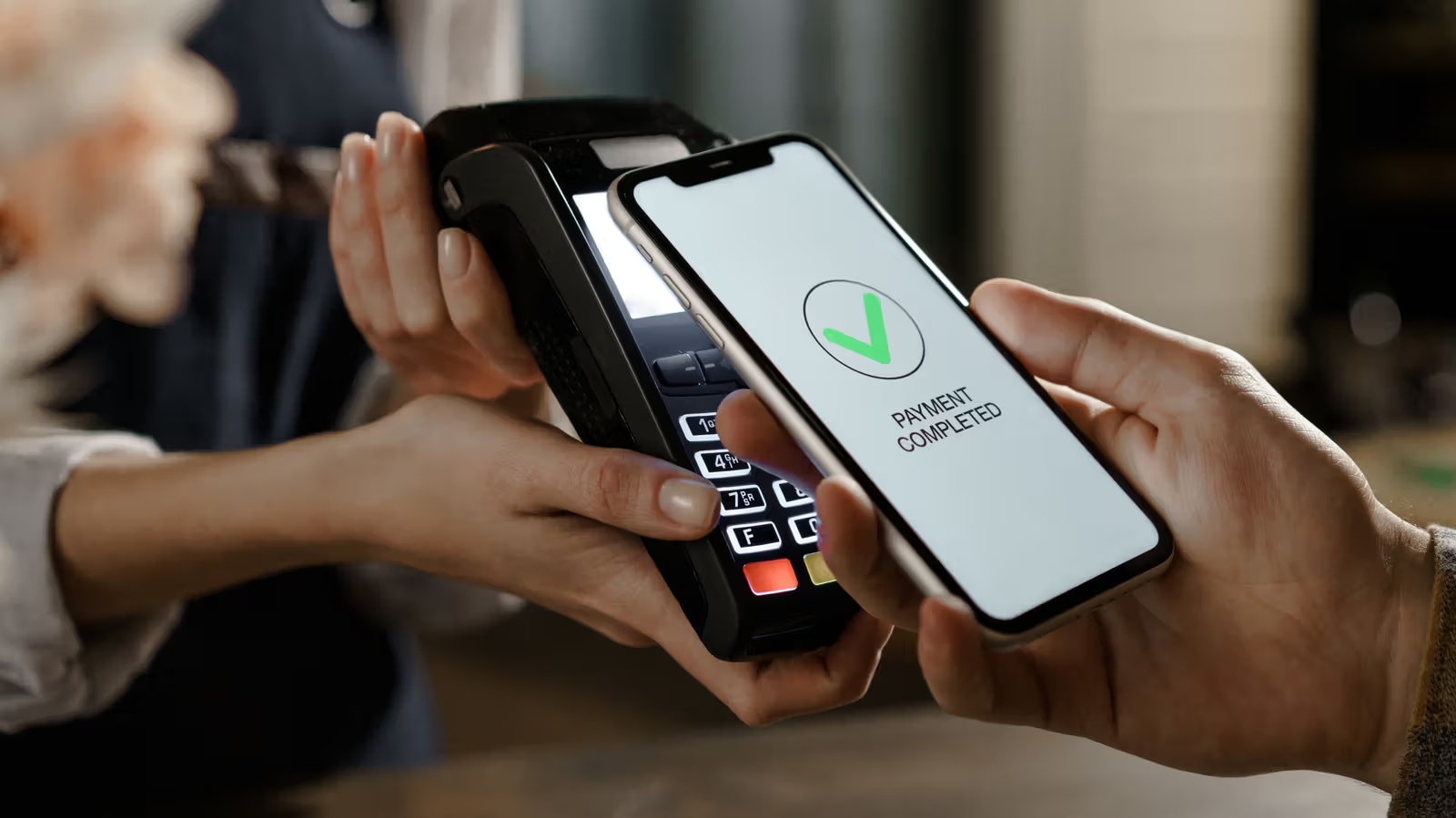
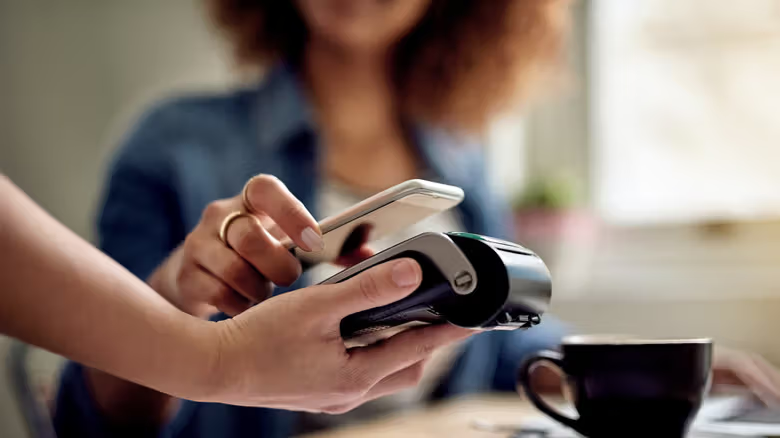
When your phone is gone, what you should worry about most is not your address book or photos, but the credit card lying in your digital wallet. Today's mobile wallets no longer contain only payment cards, but may also include boarding passes, event tickets, membership points cards, and even digital car keys and mobile ID cards. Once in the hands of a stranger, these items are easier to use than a physical wallet.
The good news is that you can lock your wallet remotely from another device without having to retrieve your phone.
Android: Mark it as lost first, and Google Wallet will be automatically cleared.
Open Google's Find Hub on any device, log in to your Google account, select the device and click "Mark as lost" and enter the device's original PIN, pattern or password. This action will log the phone out of the Google account and remove all cards in Google Wallet; you can also display the contact number on the lock screen to facilitate the finder to contact you for return. After you find your phone, just add the card back to Google Wallet.
If you can't log in to your Google account, there is another way: go to android.com/lock from your browser, enter your mobile phone number and identity verification information, and you can remotely lock the device. As long as the phone is connected to the Internet, the lock will take effect immediately.
If Samsung Galaxy users have set up SmartThings Find, the system defaults to an extra layer of protection: Once locked, the Samsung Wallet will be locked and transactions will be suspended until the identity is re-verified. The method is to log in to your Samsung account on the SmartThings Find website, select the device and click "Lock".
iPhone: Lost Mode: Block once, then remove the card and be more aggressive
Open the Find My App on another Apple device, or log in to Find My directly on a browser. After finding the lost iPhone, turn on "Lost Mode" to lock the device and block access to Apple Pay. After the device is retrieved and the identity is re-verified, the contents in Apple Wallet will be automatically restored.
If you can't find the device, or want to go further, you can remove the card entirely from the wallet: click your name in the "Settings" of the other Apple device, select the lost device, enter "Wallet & Apple Pay", and select "Remove Items". The same operation can also be completed after logging in to your Apple account on the web version.
Before your phone is recovered, it's also worth checking the login history of your Google, Apple or Samsung account on another device to see if anyone has logged in elsewhere. If you can't get your phone back for a while, contact the card-issuing bank directly and report the loss or freeze of the digital card separately, which is more convenient than reporting the loss of the entire physical card - you don't need to wait for a new card to be sent or change the card number to add it back to your wallet later. Only when you really can't find it can you consider remotely restoring the original factory settings: After the iPhone is cleared of data remotely, Find My and enabled lock will still be retained to facilitate continuous tracking; but once the Android device is reset remotely, the whereabouts of the device can no longer be traced, so think clearly before proceeding.