4K TV does not mean full 4K: if any of the film sources, subscriptions, and cables are missing, they will be downgraded.
Buying a 4K TV does not mean that the picture will always be 4K. From the TV model, streaming subscription level, HDMI cable to network bandwidth, if any link is dropped, it will be quietly downgraded. This article summarizes some practical inspection steps.
The often-ignored Info button on the remote control will pop up a small window when pressed, indicating the output resolution of the current picture - this is usually the fastest way to reveal that "this TV is not broadcasting 4K at all". When most people buy a 4K TV, they assume that everything will automatically become 4K. In fact, there is a whole chain involved: the TV itself, the source device, the subscription level of the streaming service, the cables, and even the Internet speed at home. If any link is not correct, the picture will be pushed back to a lower resolution, and usually no prompt will pop up to tell you.
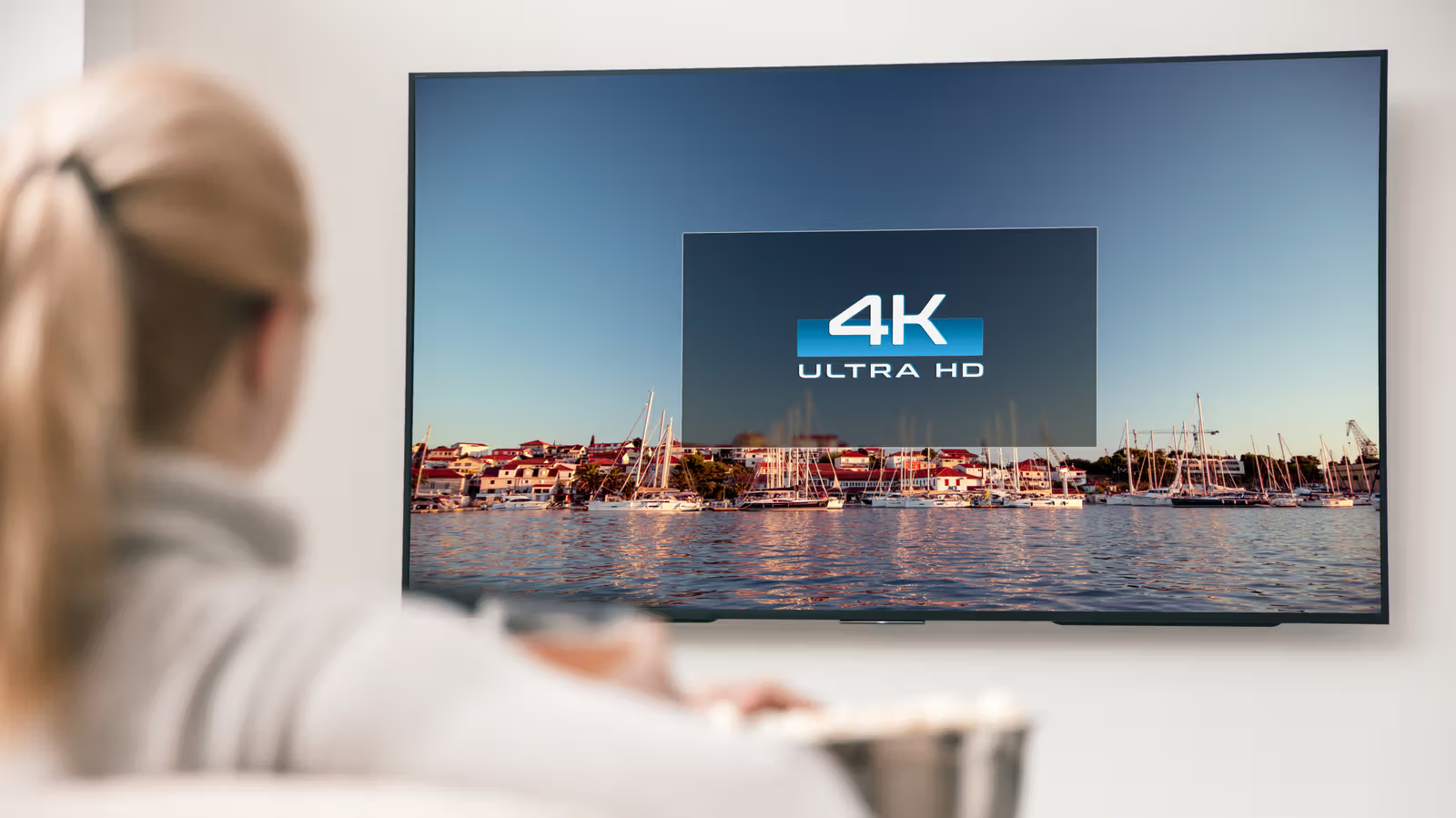
The first step is to confirm whether the TV you have really supports 4K. The method is to enter Settings on the main menu of the TV, find the About or Info tab and check the model name. If the model has the words "4K" or "UHD" on it, it means that this specification is supported. If you cannot find it, you can check it with the model number, or directly look at the logo printed on the back or front frame of the TV.
How to confirm on TV
After confirming that the TV supports 4K, as long as the 4K video source is played, TVs from brands like Samsung and LG will almost automatically detect the resolution and display it in native specifications. There is no option to manually switch the resolution. Most remote controls have an Info or similar function button. Press it to see a floating window of the current output resolution, or you may see the same information by parking the cursor on the source in the menu.
The common picture ratio adjustments such as 16:9, fit to screen or custom on TVs are different from the resolution. Switching these will not change the actual playback resolution. The name of the Super Resolution function on LG TVs sounds like it improves the picture quality, but it is actually an upscaling technology that amplifies lower-resolution content, and does not actually turn the source into 4K. In the same way, picture modes such as Cinematic and Gaming only adjust the color and processing methods, and also do not involve the resolution itself.
The source device and streaming settings must also match
The TV will only display the picture quality actually sent in from the external device. Some older or entry-level streaming sticks and game consoles only support 1080p. Therefore, when using a streaming device or console, you must advance the device settings to confirm whether the 4K output is turned on, and confirm that you are using an HDMI cable that supports 4K transmission.
Most streaming servers require subscribing to the highest level plan to have 4K, and some require additional manual activation options. Take Disney+ as an example. After entering Settings, click App settings. There is a data usage setting. Select Automatic to play at the highest image quality allowed by the bandwidth, up to 4K UHD, which consumes about 7.7GB of data per hour. There are also two lower options: Moderate (HD) and Save data (SD). As long as Automatic is selected and the subscription plan supports it, theoretically it will automatically play in 4K when a 4K version is available.
For services like YouTube that can manually adjust the image quality, you have to switch the image quality setting of the current video to 4K, but not all videos have 4K versions uploaded. Although the channel number of cable or live TV services is often marked with the word "4K", such content is sometimes upconverted with lower resolution images and is not native 4K. Most of the live TV content that is actually broadcast in native 4K only appears in the broadcast of specific sports events.
Almost all self-made programs on Apple TV have 4K specifications, but external film sources are not necessarily available. After selecting the title, you can see the actual resolution provided in the information bar. For example, "Ted Lasso" has a 4K version, but some live sports content may not be available. Amazon Prime Video includes 4K image quality in the more expensive Prime Video Ultra plan. In addition to removing ads, this plan also adds 4K access rights.
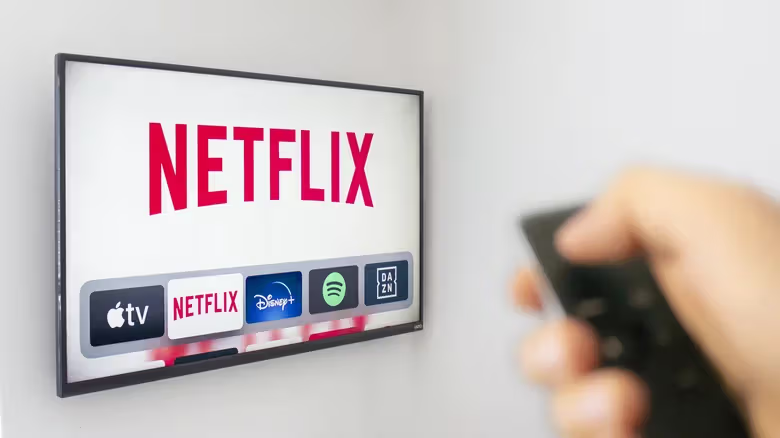
The same is true for Netflix: even if a certain work itself has a 4K version, as long as the subscription plan is not Premium, that picture quality will not be used during playback. As for 1080p or SD content, the upscaling function of the TV can make the picture look more detailed, but it is not true 4K after all. Game consoles are in a similar situation - although the PS5 supports 4K, some games will still be output at a lower resolution in order to maintain a stable frame rate, and then upconverted depending on the situation.
Network conditions will also cause streaming services to actively lower the image quality in order to ensure smooth playback and avoid buffering. It is recommended that 4K streaming requires a minimum bandwidth of 25Mbps. If the content contains Dolby Vision or multiple devices are using the network at the same time, the bandwidth required will be higher. TV, source device, cables, subscription plan, Internet speed, as long as there is a section of this path that is not connected, what is displayed will not be true 4K.