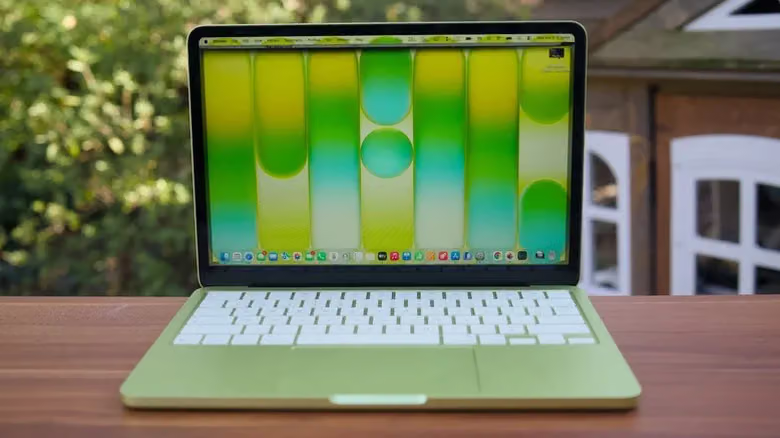
How Many External Displays Can Your MacBook Really Drive? It's the Chip, Not the Ports
The MacBook Neo has two USB-C ports, but only one can output video, and it's capped at 4K 60Hz. From the Neo to the M5 Max Pro, the external display limit varies by up to 4x — and the chip inside is the deciding factor.
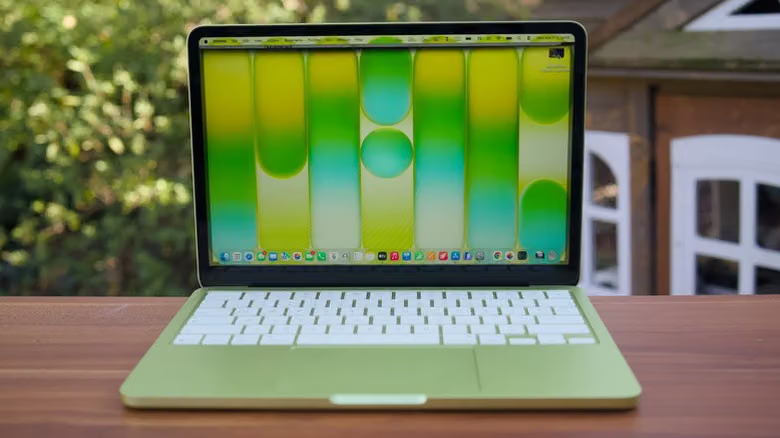
The MacBook Neo has two USB-C ports on its body, and they look symmetrical — but only the one toward the back of the machine can actually output a video signal. The one at the front is limited to charging or connecting low-speed peripherals like a mouse and keyboard. Even if you use the correct port, the Neo can only drive a single external display, capped at 4K resolution and 60Hz refresh rate. It also doesn't support Thunderbolt at all, so any Thunderbolt-only monitors on the market are simply off the table.
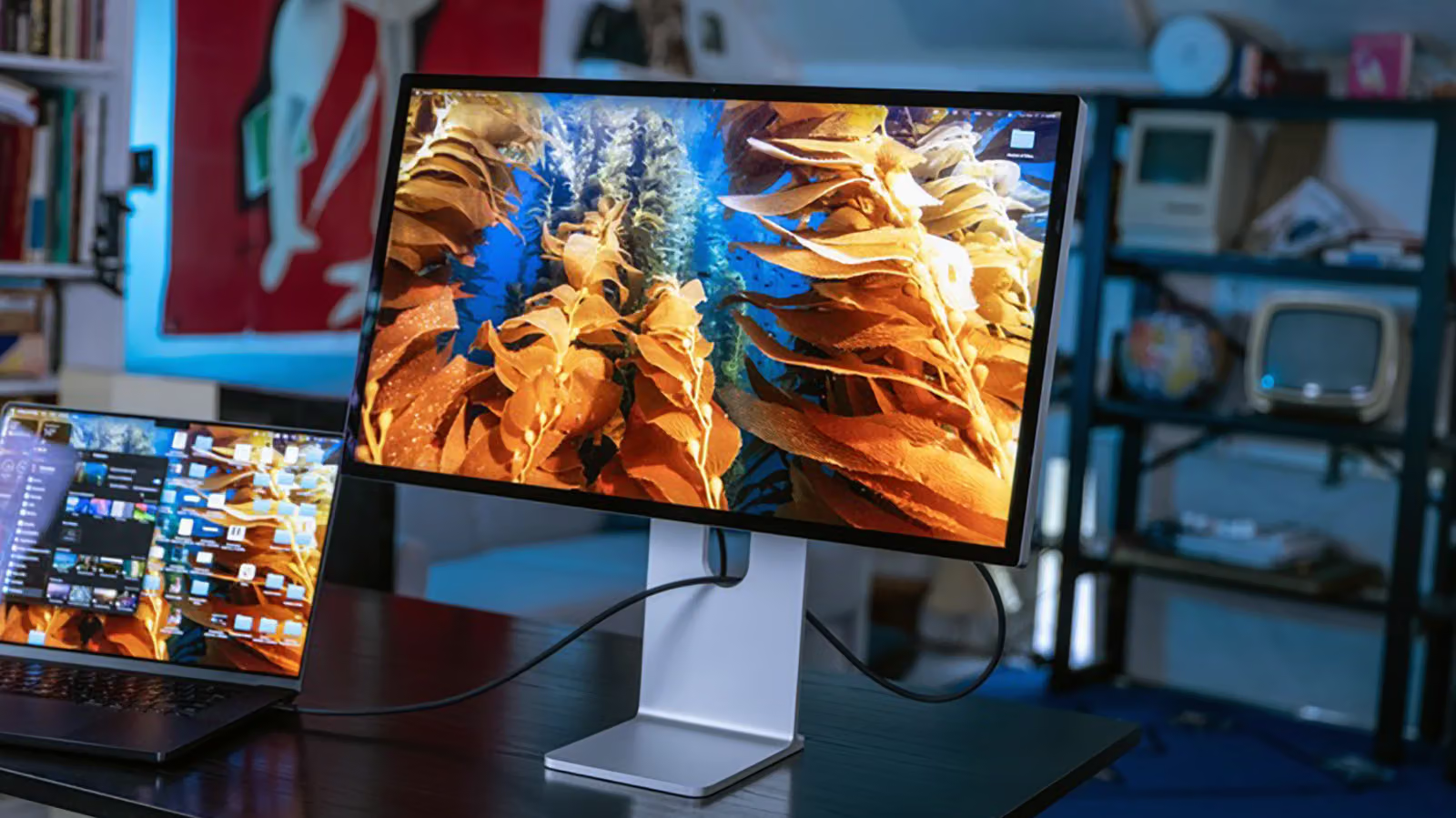
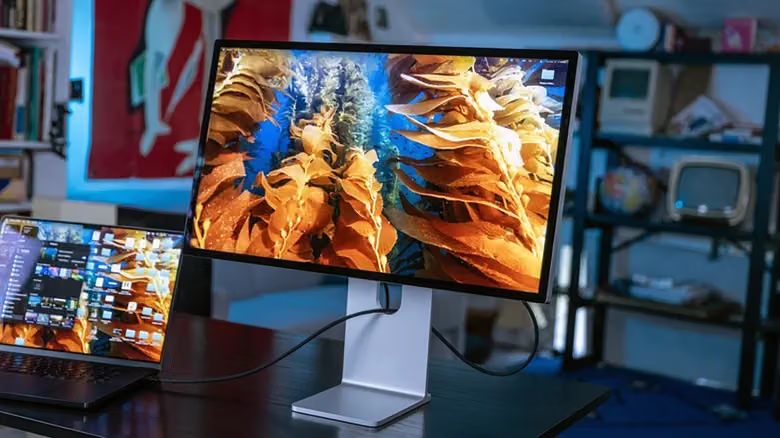
This is the first key thing to understand about Apple laptops and external displays: the number of ports has never been the deciding factor — the chip is. Even though they share the same USB-C connector, the MacBook Air (M5) and MacBook Pro (M5) can both drive up to two external displays, specifically two 6K displays at 60Hz or two 4K displays at 144Hz. If you connect just one display instead, you can actually push it further — up to 8K at 60Hz, 5K at 120Hz, or 4K at 240Hz. Moving up to the M5 Pro models, you get support for three external displays (three 6K at 60Hz or three 4K at 144Hz), while the M5 Max is currently the top performer, supporting up to four 6K displays at 60Hz, or two 8K displays at 60Hz, or four 4K displays at 144Hz. From entry-level to top-spec, the maximum number of external displays differs by a factor of four.
Worth remembering: these limits have nothing to do with whether you're using clamshell mode (lid closed). Current models won't unlock an extra display just because you've closed the lid and are using the laptop as a desktop. This differs from the behavior of some older MacBook models, so if you're using an older machine, you'll need to check Apple's official specs for that specific model.
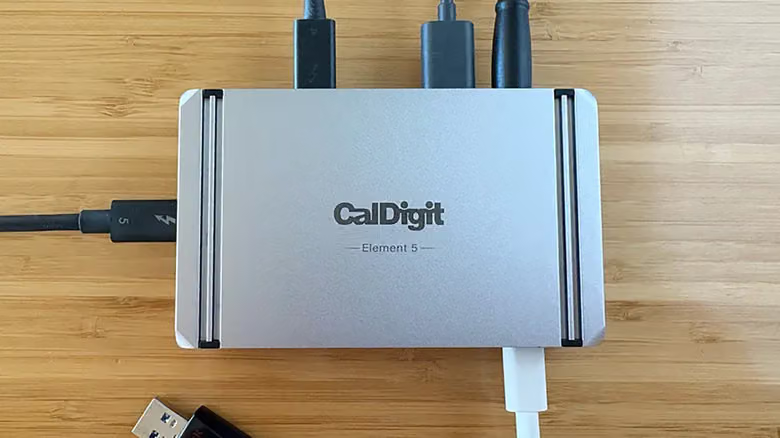
Where a Thunderbolt dock actually helps is simplifying your cable setup — one cable can handle your monitor, external drive, keyboard and mouse, Ethernet, and even power delivery. But it won't let you break through the display limit set by your chip, not even with a well-regarded dock like CalDigit's. As for basic USB hubs, even ones with HDMI or DisplayPort outputs, they're bound by the same ceiling. And since the MacBook Neo doesn't support Thunderbolt at all, this entire route is closed off to it from the start.
DisplayLink: A Workaround Beyond Official Specs
If you genuinely need more displays than the official limit allows, the most common workaround right now is DisplayLink — but you need to understand the trade-offs first. The setup involves getting a DisplayLink-compatible dock or adapter, installing DisplayLink Manager on your Mac, and granting it Screen Recording permission. The way it works: software compresses the display output and sends it over USB to a DisplayLink chip inside the peripheral, which then converts it into a signal the monitor can display — effectively bypassing the official display limit.
This setup works well enough for basic office tasks, but it's not suited for anything demanding smooth, responsive visuals like gaming. What's more troublesome is that once you connect a DisplayLink display, copy-protected streaming content — Netflix, Disney+, YouTube TV, and similar services — may fail to play entirely, though local video files and regular YouTube are unaffected. If your dock supports both native video output and DisplayLink, always go with native output when possible — you'll get better refresh rates and responsiveness, and you won't run into content restrictions. Save DisplayLink for those situations where you genuinely need more screens than your setup can natively support.
To check your MacBook's actual specs, click the Apple menu in the top-left corner and select "About This Mac" to find your model, then check Apple's support site for the corresponding external display specifications — that'll be far more reliable than going off memory.