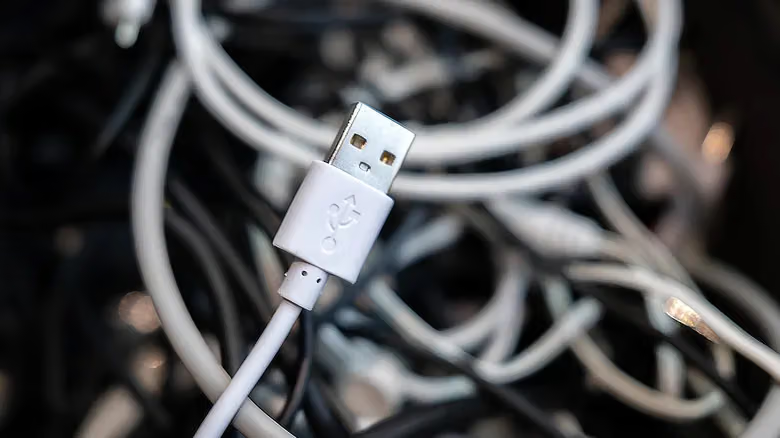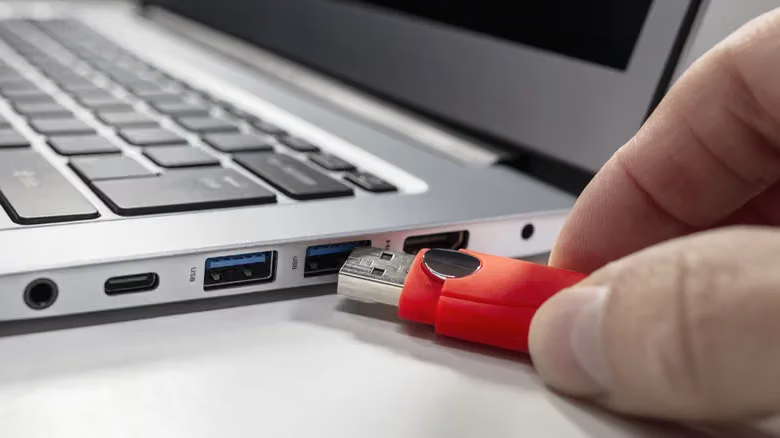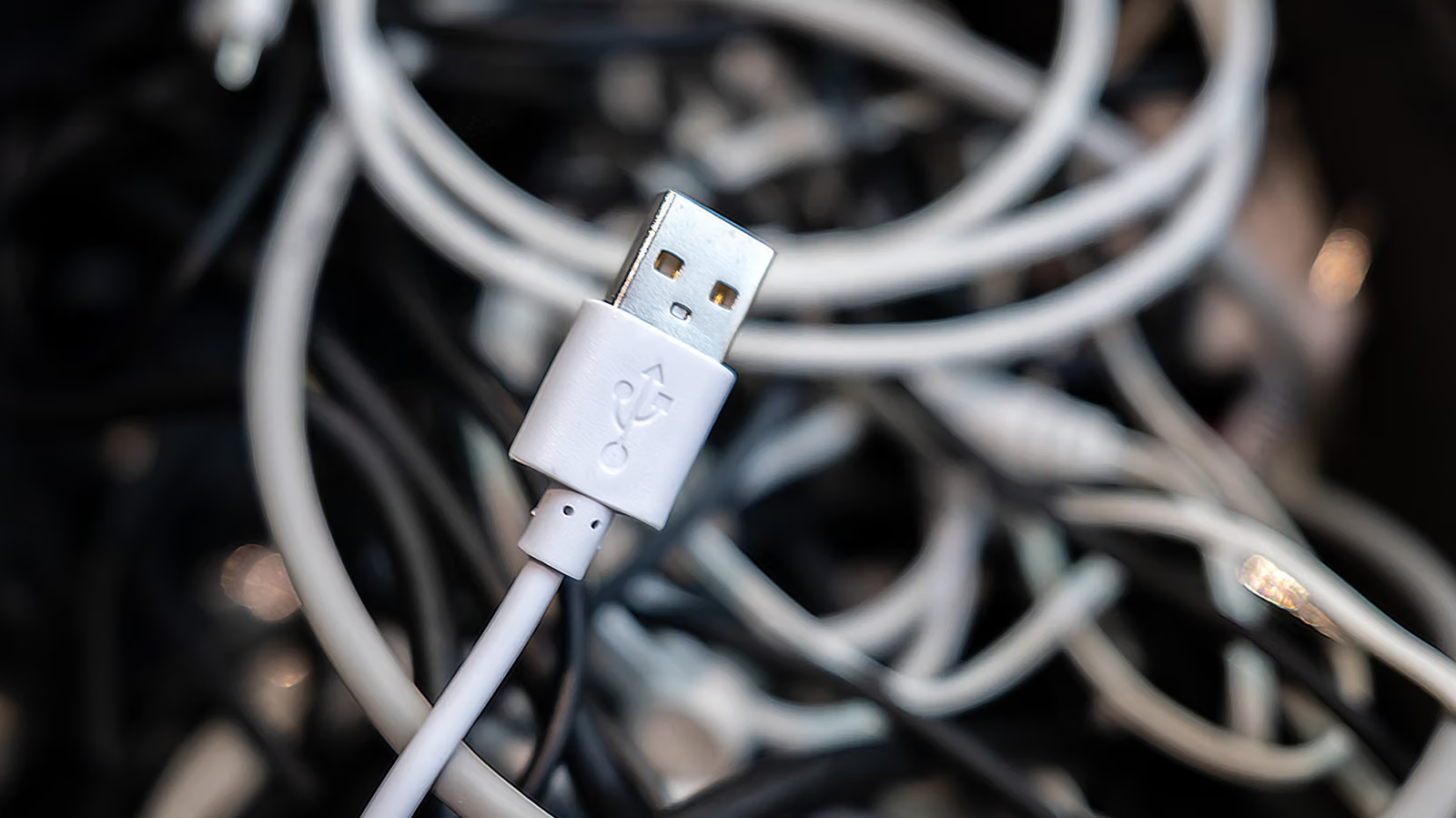
That trident symbol has been printed next to USB ports since the late 1990s, and its look hasn't changed in decades — but what it actually represents has been renamed at least three times. When the trident appears alone, it usually refers to USB 2.0, which launched in 2000 under the marketing name "High Speed," with 480Mbps of bandwidth. By today's standards, that's only enough for low-speed peripherals like mice and keyboards.
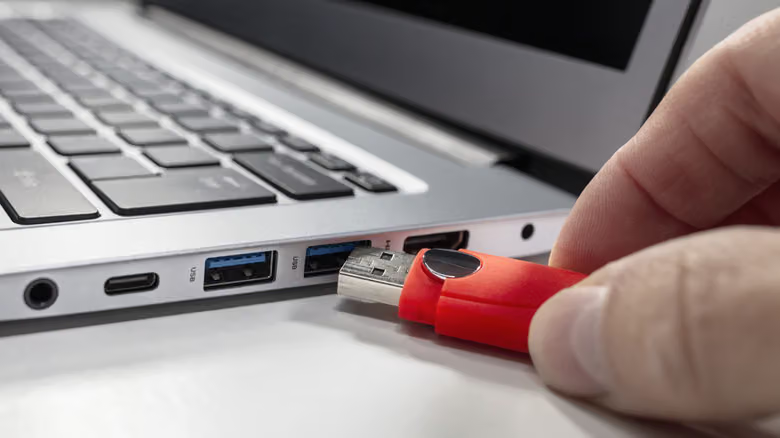
The real mess started with the naming history after USB 3. USB 3.0 launched in 2008 with 5Gbps bandwidth under the marketing name "SuperSpeed"; USB 3.1 in 2013 pushed that to 10Gbps and was rebranded "SuperSpeed+"; USB 3.2 in 2017 hit 20Gbps and got saddled with the clunky label "SuperSpeed USB 20Gbps." Along the way, USB-IF also briefly used codenames like "USB 3.2 Gen 1x1," before finally settling things in 2022 by simplifying the three generations into USB 5Gbps, USB 10Gbps, and USB 20Gbps. In other words, there are currently at least three different naming systems circulating in the market for the exact same set of technologies.
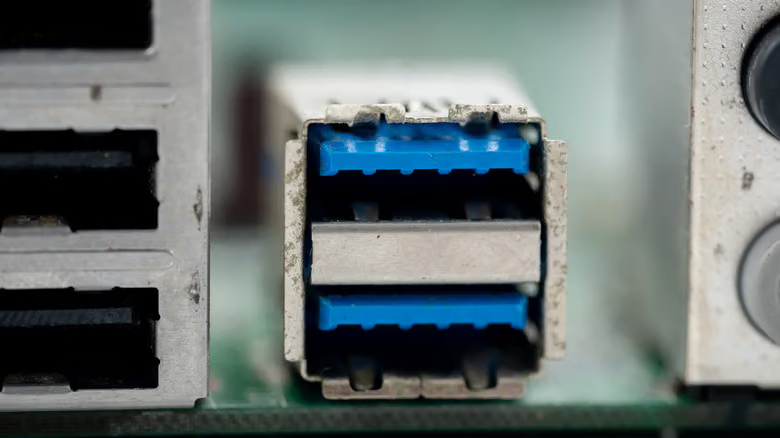
Color coding isn't a foolproof reference chart either. Black or white typically indicates USB 2.0; blue is the most common color, usually corresponding to USB 5Gbps, though some manufacturers use blue for later generations too. Red is less common and usually signals USB 10Gbps or USB 20Gbps — red ports also frequently retain power delivery even when the computer is powered off. Yellow can mean either USB 2.0 or USB 5Gbps, and also often supports power-off charging. A handful of manufacturers even use purple. Currently, only white, black, and blue are officially certified colors by USB-IF; all other colors lack standardized rules, and manufacturers are now encouraged to use symbols rather than colors to indicate functionality.
The Two Generations of USB4, and a 100GB Benchmark
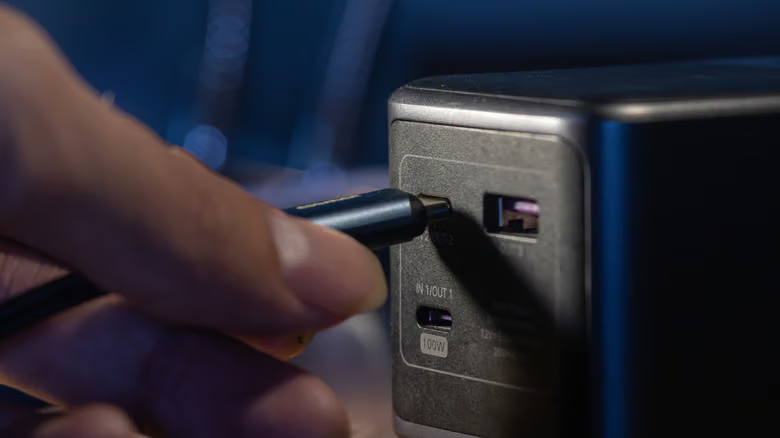
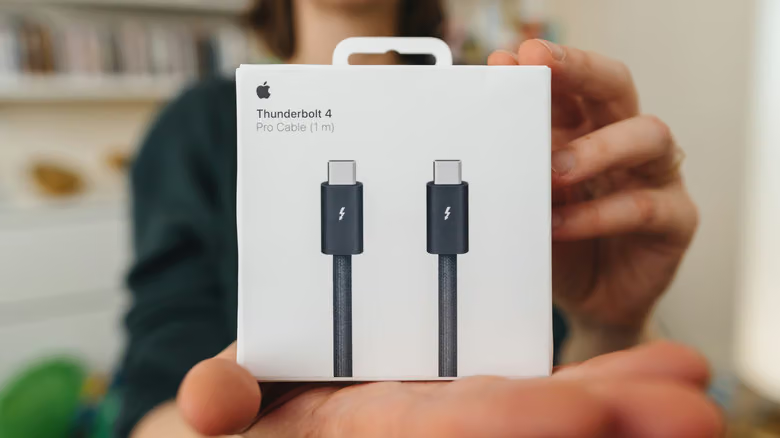
USB4, launched in 2019, is the current latest standard, split into two speed tiers of 20Gbps and 40Gbps — marketed accordingly as USB 20Gbps and USB 40Gbps, marked with a trident symbol plus "20" or "40" alongside a small semicircle icon. USB4 2.0, which arrived in 2022, pushes bandwidth to 80Gbps and is labeled USB 80Gbps. One important caveat: USB4 only exists on USB-C ports, but the reverse isn't true — not every USB-C cable can actually handle USB4 speeds. USB-C itself is just the connector shape; the underlying spec still needs to be verified separately.