New USB Drive Out of the Box? Here's Why You Should Format It First (NTFS vs exFAT vs FAT32 Explained)
That brand-new USB drive you just bought might not actually be formatted the way you need it. Engadget breaks down how to format on Windows and explains when to use NTFS, exFAT, or FAT32.
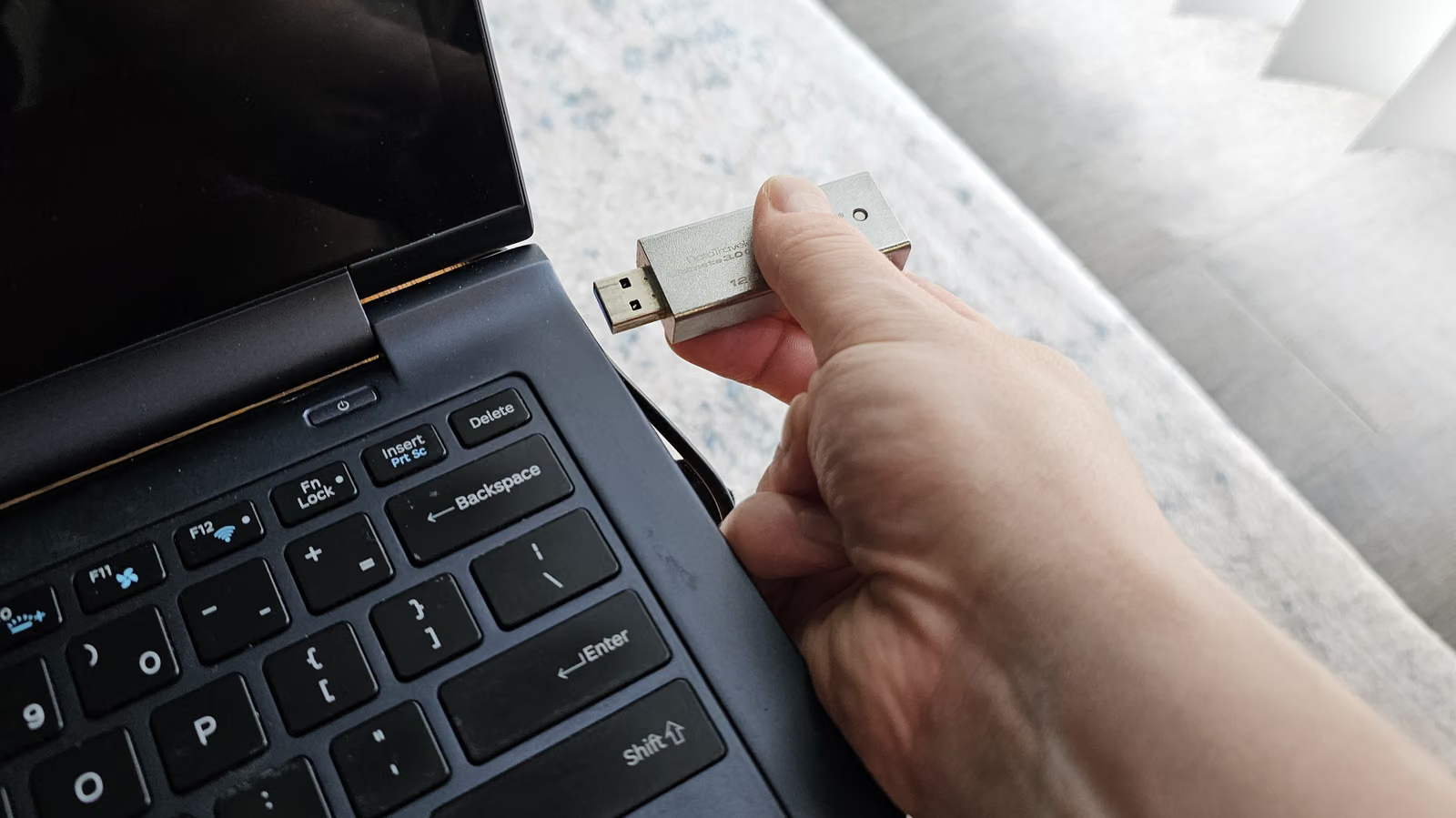
Buy a brand-new USB drive, plug it into your computer, and start dumping files onto it — that's the go-to move for most people. But it's also a small mistake waiting to happen. Manufacturers typically ship drives with an older file system preset for maximum compatibility, which doesn't necessarily match how you actually plan to use it.
Formatting often gets misunderstood as just "wiping old files." In reality, it does much more: it overwrites storage blocks so old data can't be recovered, rebuilds the file system structure, and scans for damaged storage sectors. In other words, even after manually deleting every file on a drive, hidden leftover data — or even malware — could still be lurking there. Formatting is the only way to truly wipe it clean and restore stable performance.
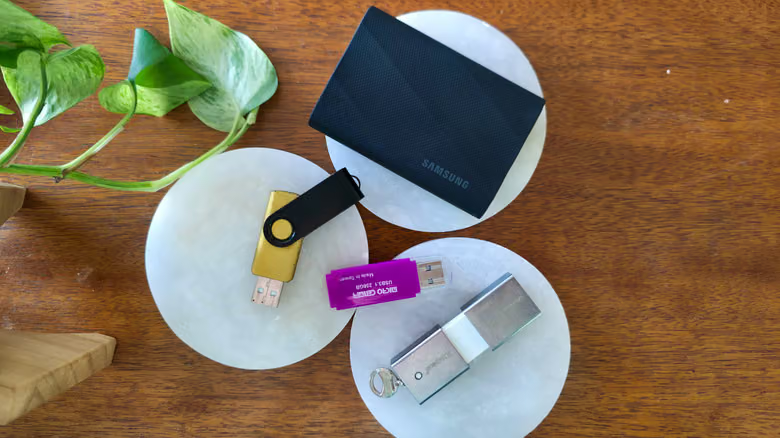
What's even more overlooked: it's worth formatting a brand-new drive before first use too. Drives from brands like SanDisk and Kingston often ship configured with FAT32, an older format with broad compatibility but a hard limit on handling files larger than a few gigabytes — a real problem given how common multi-gigabyte video files and games are these days.
Pick the Wrong Format and You're Asking for Trouble
Windows itself runs on NTFS, which supports partitioning and encryption. If you only ever plan to use the drive with Windows PCs, NTFS is your best bet. But the moment there's a chance you'll plug it into Linux, Android, iOS, or macOS devices, skip NTFS — compatibility issues will follow.
For cross-platform use, exFAT is currently the format with the widest compatibility, capable of handling files larger than 4GB. It's ideal for expanding storage on an Android phone, or storing movies, 4K video, and compressed archives. It lacks some of NTFS's advanced features, but that's more than enough for a USB drive or portable SSD.
As for FAT32, it's the oldest format around, with the broadest compatibility of all — even old car stereos and legacy printers can read it. But the downsides are obvious: it can't handle files larger than 4GB, and it's more prone to fragmentation than newer formats. Windows 11 also isn't particularly friendly toward FAT32 in certain scenarios.
Formatting in 5 Easy Steps
Plug the USB drive into a high-speed USB port, open File Explorer, click "This PC" in the left sidebar, right-click the corresponding drive, and select "Format." Make sure you've picked the correct drive, and close any programs currently using that drive or its files.
In the Format window, the second dropdown lets you choose the file system: pick exFAT for cross-platform use, or NTFS if it'll stay in a Windows-only environment. You can leave the allocation unit size at default — most modern USB drives default to 32KB or 128KB when formatted as exFAT. If you're mainly storing large files like games, bump the value up; if you're storing lots of small text notes, lower it instead. The rule of thumb: the larger the drive capacity and the bigger the files you plan to store, the larger the allocation unit size can be.
The "Volume label" field lets you name the drive — this step is optional. Finally, click "Start," confirm in the pop-up window, and you're done. Depending on the drive's capacity and condition, the whole process might take just a few seconds or a few minutes. Once complete, a confirmation window will pop up — close the tool, and the drive is essentially reset and ready to use with a clean slate.