Let's be honest—everyone in the group chat is secretly sick of the same overused emojis. GIFs offer plenty of options, but finding one that perfectly matches the absurdity of the moment often takes forever. This is exactly what iPhone's built-in sticker feature solves—instead of pulling from someone else's premade library, you can turn photos straight from your own phone into jokes that only your circle of friends would understand.

There are two ways to do this. The first is through the Photos app: open a photo with a clear subject—a person, animal, hand gesture, or object all work—and press and hold on the subject. Once it "glows" and the toolbar pops up, tap Add Sticker to save it to your sticker library. Sometimes you can pull more than one sticker out of the same photo. If you pick a Live Photo, the sticker automatically becomes an animated version; if you don't want the motion, there's a Live toggle in the top-left corner to turn it off.

The second method is even more direct and happens right inside the Messages app. Open a conversation, tap the "+" to the left of the text field, select Stickers, then tap the "+" in that list. The system will automatically highlight elements in your photos that can be converted into stickers—no need to press and hold and guess on your own. Just tap to select, then hit the "+" below to add it to your sticker library.

Peel It Off, Slap It On—And Watch It Shine

Once your sticker library is built up, managing it works a lot like rearranging home screen icons: press and hold any sticker and select Rearrange to enter "jiggle mode," where you can drag to reorder or tap the "-" in the top-left corner to delete stickers in bulk. In that same menu, Add Effect lets you apply looks like Outline or Shiny to your stickers—the Shiny effect in particular catches light as you tilt your phone, kind of like a holographic trading card.
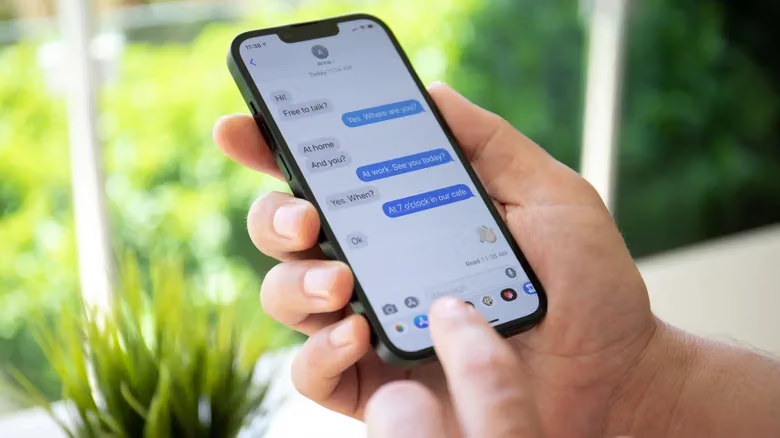
Sending is simple: tap a sticker in your library and it drops into your message draft, just like sending a photo. But the real fun move is pressing and holding a sticker to "peel" it up, then dragging it onto a photo or piece of text in the conversation to "stick" it on—like plopping your cat into a friend's scenery shot, or slapping their most cringeworthy expression on as a reaction. That's where this feature really shines.

This peel-and-stick trick only fully works in blue-bubble iMessage conversations. Send it in an RCS chat with an Android user and the sticker will go through, but the peeling effect likely won't show up. Over traditional SMS, image size limits mean the sticker quality might come through blurry.

Stickers aren't exclusive to Messages, either. In WhatsApp, tap the emoji button in the bottom-left of the keyboard and switch to the Stickers tab—though you lose the peel-and-stick interaction there. Any app that supports Markup mode can also tap into your sticker library. For example, open a photo in the Photos app, tap Edit (the slider icon), then go into Markup (the pen icon). From the toolbar, tap "+" and select Add Sticker to layer a sticker onto the photo, resize it, duplicate it, and remember to save when you're done. Mail and Notes support the same Markup trick.

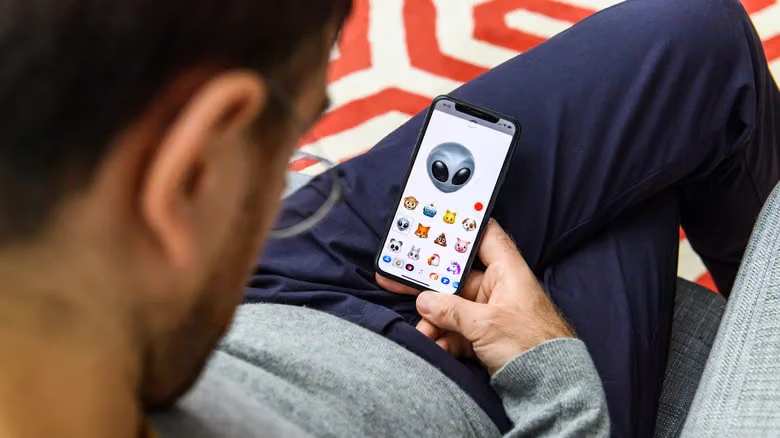
Beyond your own creations, the sticker menu also holds emojis (any emoji can double as a sticker), Genmoji, Memoji, and sticker packs from apps that support them—apps like American Airlines, Wikipedia, and Taco Bell all have their own sticker packs. You can reorder them by tapping Edit in the top-right corner, or find more by scrolling to Get Sticker Apps at the bottom of the menu, which links out to the App Store.

Any stickers you make sync across all your devices through your Apple account, so they'll be ready to use on iPad and Mac too.

Ditch the Emojis: How to Turn Your Own Photos Into iPhone Stickers