TIDEZINE.

CarPlay Keeps Getting Interrupted by Siri? Four iPhone Settings to Quiet Down Your Voice Assistant

Siri wants to read out everything on CarPlay, from message notifications to turn-by-turn directions. With Focus mode, Announce Notifications, and Apple Maps volume settings, you can make your drive a lot quieter.

CarPlay Keeps Getting Interrupted by Siri? Four iPhone Settings to Quiet Down Your Voice Assistant

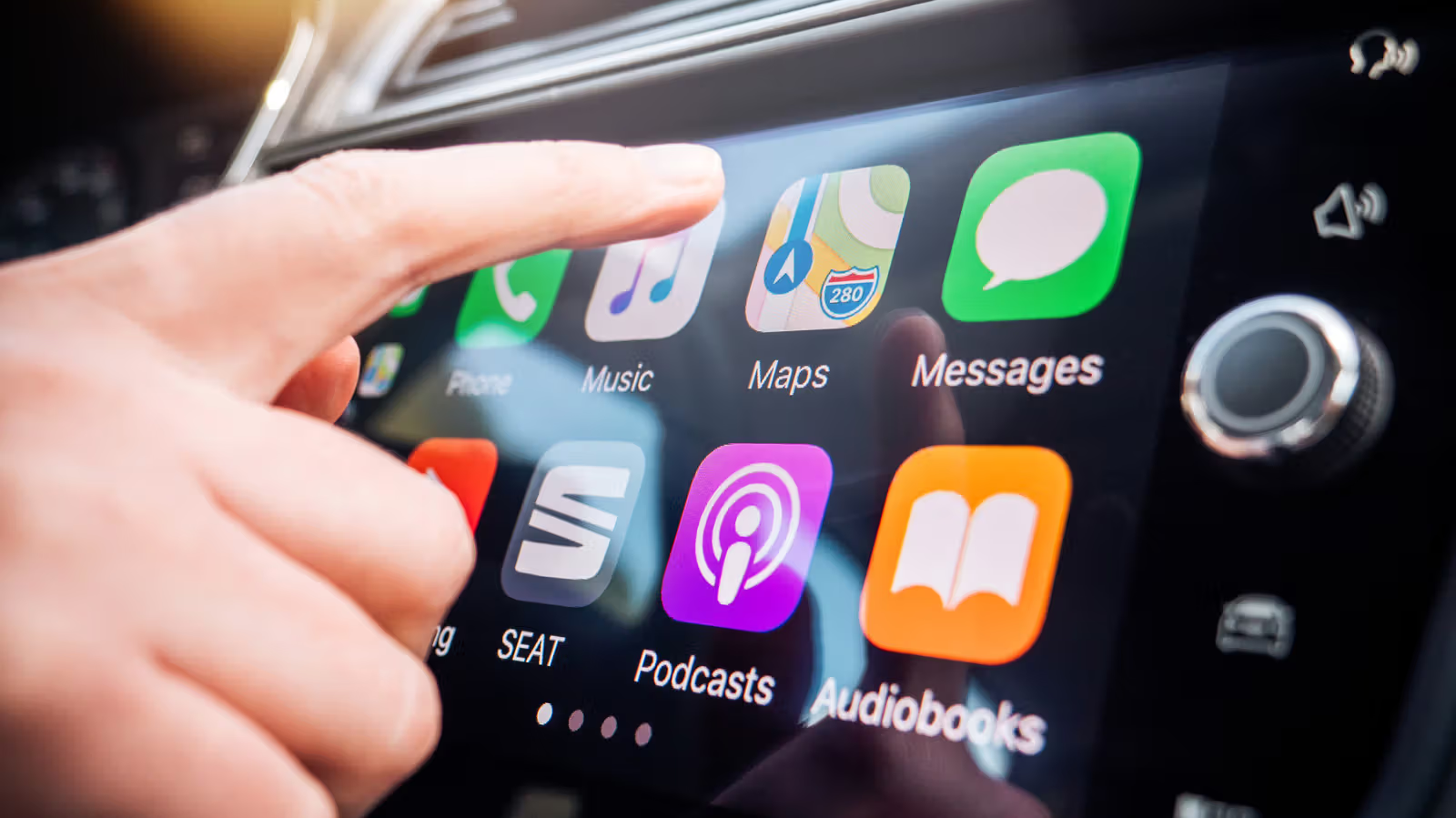
The most annoying thing about driving with CarPlay isn't a wrong route calculation—it's Siri wanting to chime in on everything. Group messages pop up and get read aloud, a podcast gets cut off mid-sentence to announce an incoming call. This kind of interruption is far more dangerous behind the wheel than at a desk. You can't turn Siri off completely on CarPlay—it's baked into how the system works—but there are several buried settings that can quiet it down considerably.

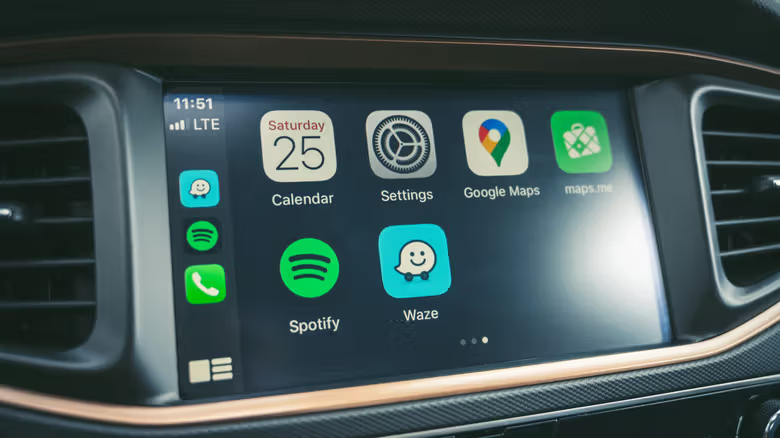
The most crucial switch is the Driving Focus mode. Open Settings on your iPhone, go to Focus, and if Driving isn't in the list, tap the plus button in the top right to add it. Inside Driving Focus, select People and add the few contacts who might reach you while driving—only they'll be able to send notifications through, whether via Messages or WhatsApp. Below that is a Calls option: choosing Contacts Only blocks spam calls, or you can narrow it down to a custom list as well. Auto-Reply lets you set a short message that automatically tells people you're driving when they text you, so you don't have to dictate a reply mid-drive. Once set up, scroll down to While Driving and make sure Activate With CarPlay is turned on—after that, whenever you connect to CarPlay wired or wireless, a small car icon will appear below the clock, indicating the mode is active.
CarPlay開車總被Siri打斷?四個iPhone設定讓語音助理閉嘴

Turning off notifications alone isn't enough—Siri's habit of reading things aloud can also be adjusted. In Settings, find Notifications, then go into Announce Notifications, and scroll down to the CarPlay menu. Turn off Announce Messages, and Siri will stop reading incoming messages word for word while you're driving. On the same page, it's worth turning on Reply Without Confirmation—by default, after you dictate a reply, Siri reads it back to confirm before sending, which is an unnecessary extra step on the road. With this on, it sends as soon as you finish speaking.

If Siri often mistakes road noise or in-car conversation for you interrupting it, go to Settings > Accessibility > Siri and turn on Require "Siri" for Interruptions. This way it won't stop mid-sentence just because of ambient noise—only when you actually say "Siri." On the same page, you can also adjust Siri Pause Time to Longer or Longest, giving yourself more time to think before speaking, so it doesn't assume you're done and hang up on its own.
CarPlay開車總被Siri打斷?四個iPhone設定讓語音助理閉嘴

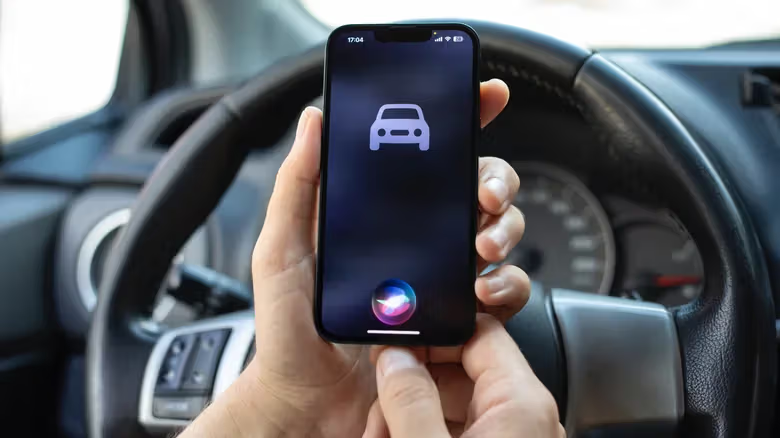
Additionally, in Settings > Apple Intelligence & Siri > Talk to Siri, you can turn off the wake phrase, so Siri can only be summoned via the steering wheel voice button or by long-pressing the side button on your phone. Some vehicles support adjusting Siri's speaking volume separately using the volume knob, without affecting music or other playback—this depends on the car, but it's worth trying.

Navigation Voice Can Also Be Trimmed Down to the Essentials

CarPlay開車總被Siri打斷?四個iPhone設定讓語音助理閉嘴

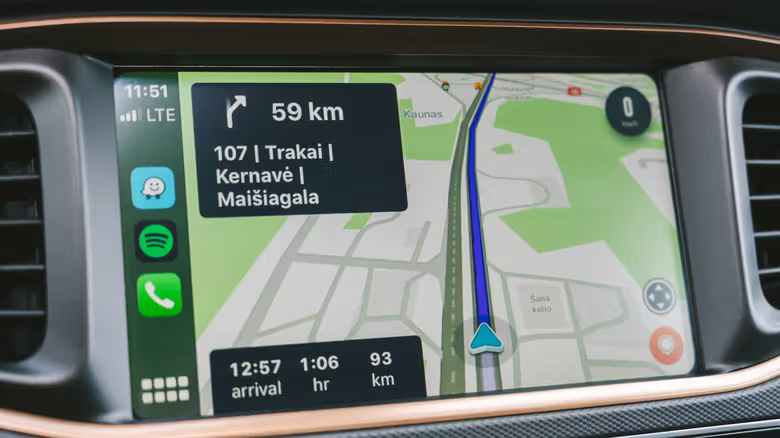
Turn-by-turn directions at every intersection make it hard to miss a turn, but they also keep interrupting whatever you're listening to. Apple Maps and Waze work the same way: tap the screen during navigation to bring up the buttons, then tap the speaker icon to choose full voice guidance, alerts only, or complete silence. Alerts only is a more reasonable middle ground, since traffic changes or upcoming slowdowns happen far less often than turn-by-turn directions, yet matter more when they do.

For Google Maps, you'll need to open the app on your phone, tap your profile icon in the top right to go to Settings > Navigation, and turn on Play alerts even while muted—Guidance volume can also be adjusted on the same page. For Apple Maps, go to Settings > Apps > Maps > Spoken Directions to adjust Voice Volume, and you can also turn off Directions Pause Spoken Audio so podcasts or audiobooks won't be paused just to announce a turn.

These settings are scattered across different parts of the system, but once you've gone through them all, Siri will know when to stay quiet during your CarPlay drives—and when to actually speak up.

Related

Siri Ignoring You on CarPlay? The Problem Usually Isn't Siri Itself
Tech

Siri Ignoring You on CarPlay? The Problem Usually Isn't Siri Itself

Calling out to Siri while driving and getting nothing back? Don't be so quick to blame the voice assistant. The real culprit could be hiding in your iPhone settings, a wired or wireless connection issue, or even the car's own infotainment system. Working through each one methodically beats randomly poking at settings.

Android Auto vs. Android Automotive: Confused? One Phone Makes All the Difference
Tech

Android Auto vs. Android Automotive: Confused? One Phone Makes All the Difference

The names look like twins, but the logic behind them is completely different. One needs your phone as its brain, the other builds the system straight into the car. Rivian and Polestar happen to be living proof of these two opposite approaches.

What Does VESA 400×400 Mean? Don't Just Go By Screen Size When Checking TV Wall Mount Hole Spacing
Tech

What Does VESA 400×400 Mean? Don't Just Go By Screen Size When Checking TV Wall Mount Hole Spacing

VESA numbers refer to the spacing between mounting holes on the back of a TV—not resolution, not screen size. Finding the right hole pattern is just step one; checking the wall mount's weight capacity and screw specs is what actually matters before installation.

USB-C Fast Charging Standards Showdown: PD, PPS, or SuperVOOC—Which One Actually Matters
Tech

USB-C Fast Charging Standards Showdown: PD, PPS, or SuperVOOC—Which One Actually Matters

A USB-C port alone doesn't guarantee fast charging speeds—what actually determines charging efficiency is PD, PPS, and each brand's proprietary protocols. From the iPhone 17 to the Galaxy S26 Ultra, here's a breakdown of which spec actually matters.

Does the Analogue 3D Really Turn N64 Games Into 4K? Breaking Down How This Retro Console Actually Works
Tech

Does the Analogue 3D Really Turn N64 Games Into 4K? Breaking Down How This Retro Console Actually Works

The Analogue 3D's HDMI output does hit 3,840 x 2,160, but most original N64 games only ran at 320 x 240. What this $250 FPGA console actually does is something else entirely.

"If It Were Opt-In, No One Would Join" — Twitch Employee's Comment Backs Up Lawsuit's Claims
Tech

"If It Were Opt-In, No One Would Join" — Twitch Employee's Comment Backs Up Lawsuit's Claims

Connecticut streamer Warren Pandiscia is suing Twitch and Amazon for using stream content to train AI without consent, and his complaint quotes a blunt admission from the Chief Product Officer as evidence.