AirPlay Guide: How to Cast Your iPhone or MacBook Screen to a TV
From casting Prime Video off an iPhone to mirroring an entire MacBook desktop, the AirPlay process actually varies from app to app. Here's a rundown of the steps and edge cases that trip people up most.
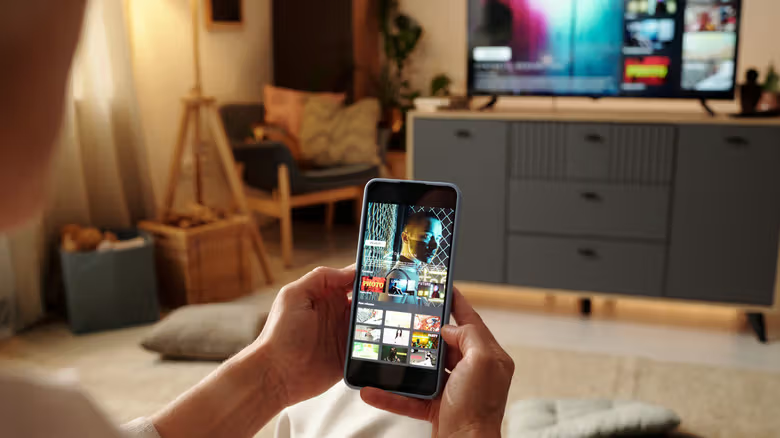
The trickiest part of AirPlay usually isn't connecting—it's that the icon looks different everywhere. For casting to a TV, apps like Prime Video and Disney+ use a "rectangle with an upward arrow" icon in the top right corner; YouTube requires tapping a Wi-Fi-wave-like cast symbol first, then choosing AirPlay from the list; and for photos in the Photos app, you have to tap the share button before AirPlay shows up in the menu. Three different paths, one same feature.
There's really only one prerequisite: the TV and iPhone need to be on the same Wi-Fi network, and AirPlay has to be turned on in the TV's settings first. To do this, go into the TV's settings menu and find an option like Network, Connections, or Apple AirPlay & HomeKit and enable it—menu naming varies slightly by TV brand.
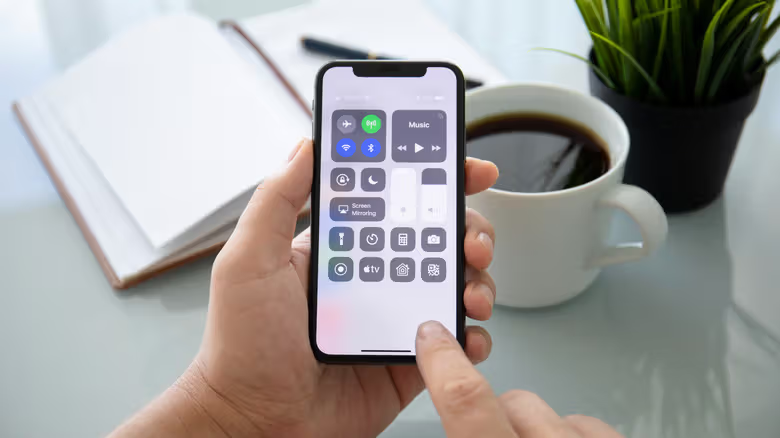
Casting music takes a different route entirely—instead of digging through individual music apps, open Control Center. In the square block controlling music playback, there's an AirPlay icon that looks like "an upward arrow with three curved lines."
Use the Same TV Often? Set It to Auto-Connect
If you're regularly AirPlaying to the same TV and don't want to manually connect every time, go to Settings on your iPhone or iPad, tap General, then AirPlay & Handoff. Under Automatic AirPlay, you'll find three options: Never (always manual), Ask (the device prompts you when it thinks you want to cast), and Automatic (connects with no action needed). This feature requires your device to be running the latest OS version.
No AirPlay Option? Use Screen Mirroring Instead
Documents or Safari tabs can't be cast the standard AirPlay way, but you can use the Screen Mirroring feature under AirPlay. Swipe down from the top right corner of your iPhone screen to open Control Center and look for the "two overlapping rectangles" icon; if you don't see it, tap the "+" in the top left, select "Add a Control," and add Screen Mirroring. Tap it, choose your TV, and the first time you use it a pairing code may appear. Once confirmed, your phone's screen—including live navigation tracking—will sync to the TV. Tap the icon again to stop.
If a video site doesn't have built-in AirPlay support, you can force it through Screen Mirroring: turn your phone to landscape and look for the full-screen button (usually shown as four corner brackets or four outward-facing arrows). You may need to tweak display settings slightly depending on the app.
Casting from MacBook: There's an Extra "Extend Screen" Option
The setup on MacBook is similar—confirm AirPlay is enabled on the TV and both devices are on the same Wi-Fi network. Then go to System Settings, select General, and find "AirDrop & Handoff" (labeled as "AirDrop & Handoff" in some versions), and toggle on "AirPlay Receiver." After that, look for the same rectangle-with-arrow icon in the playback control bar, or use the share button to bring up the menu and select your TV. A pairing code may be required here too.
Screen Mirroring on MacBook is accessed through the Control Center icon (two overlapping toggle switches) in the top right of the menu bar—select Screen Mirroring, then choose your TV. There's one extra bit of flexibility here compared to iPhone: while mirroring is active, you can open the menu again and select "Change" to decide whether to cast your entire desktop, just an active window, or use the TV as an extended display. If audio doesn't switch over automatically while playing video, you'll need to manually change the output device to your TV via the three-curved-line icon next to Volume in Control Center.
Can't Connect or Getting a Black Screen? Check These Two Things First
The Engadget writer mentions using AirPlay daily to cast a fitness app's display to their TV—most of the time it works fine, but occasionally the connection fails or drops. In those cases, the simplest fix is turning both devices off and back on, or toggling Wi-Fi off and on separately on both the TV and the phone.
Another issue is the screen going completely black—this usually happens with banking apps or apps handling sensitive information, which block screen mirroring for copyright or security reasons. In that case, there are only two workarounds: connect your iPhone, iPad, or MacBook directly to the TV with an HDMI cable, or open that service through a streaming device like Apple TV or the smart TV's built-in interface instead.
Worth noting: Netflix doesn't support AirPlay at all—only its own casting feature—and the platform has recently ended casting support on newer TV models. Even on TVs where it still works, it's limited to Standard or Premium subscription plans.