Lending Your Phone to a Stranger? Lock These Apps First
Since iOS 18, iPhones finally have an official app-hiding feature — and it's way more than just dumping icons into a folder. From Face ID locks to App Store purchase history, here's what it actually does and doesn't do.
Someone borrows your phone to make an "emergency call" — and within seconds of picking up, they've drained your Venmo account. This isn't a scare tactic; it's a real scam method called out directly in an Engadget article. That's exactly why the new app-hiding feature in iOS 18 isn't really about tidying up your home screen — it's about adding an extra layer of verification to your financial apps.
Before iOS 18, there was no official way to hide apps on iPhone or iPad — the only trick was burying them in a folder out of sight. Now, long-press an app icon and select "Require Face ID," and the system will explain that opening the app from then on will require Face ID or passcode verification, notifications won't show content previews, and the app will disappear from Spotlight search and CarPlay. Want to go a step further? Choose "Hide and Require Face ID," and the icon vanishes from your home screen entirely.
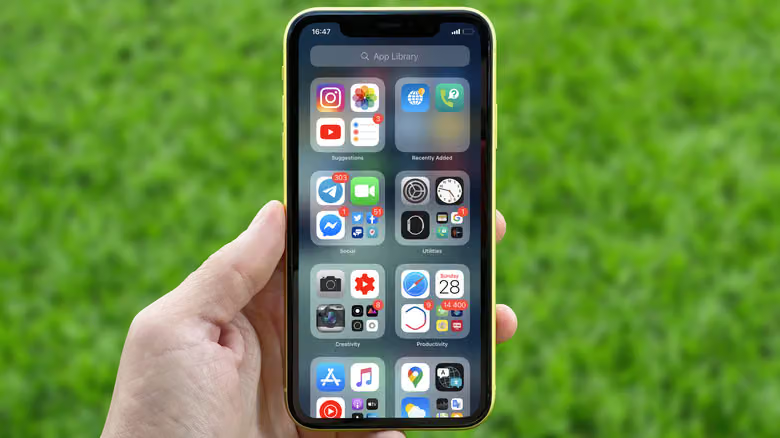
Worth noting: most built-in apps can't be locked this way — the feature only works on apps you've installed yourself, and hidden status doesn't sync across your other Apple devices. Hidden apps get moved into a folder called "Hidden" at the very bottom of your App Library. No matter how many apps you've stashed in there, the folder always appears empty from the outside — you have to verify your identity just to see the list, and opening an individual app requires verifying again. To unhide an app, long-press it inside the Hidden folder and select "Don't Require Face ID." After verification, it'll pop back to the top of your app list, and you can manually drag it wherever you want.
But this system isn't truly invisible. Anyone who knows your passcode can still see the full list under "Settings > Apps > Hidden Apps." Even trickier: "Settings > Screen Time > See All Activity" and "Settings > Battery > View All Battery Usage" will still show usage time and battery drain for any app with activity logs — hidden or not.
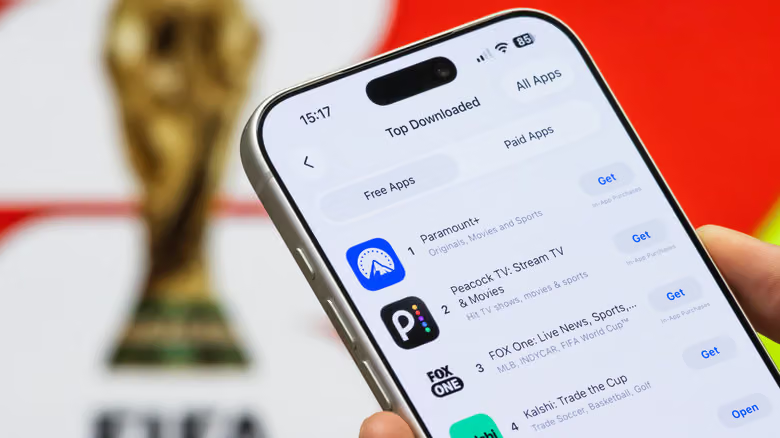
Another easily overlooked trail is your App Store purchase history, which counts even free downloads. Open the App Store, tap your profile icon in the top right, and select "Apps & Purchase History" (or "Your Apps" for Family Sharing groups). Swipe left on anything you want to hide and select "Hide" to remove it from the list. To bring it back later, go to your profile menu and find "Hidden Purchases," then tap "Unhide." But this feature is really built for organization, not privacy — viewing the Hidden Purchases list doesn't require any verification, and the transaction record itself stays fully intact in your Purchase History. Hiding a purchase basically just stops other people in your Family Sharing group from re-downloading it; it doesn't actually hide the app itself.
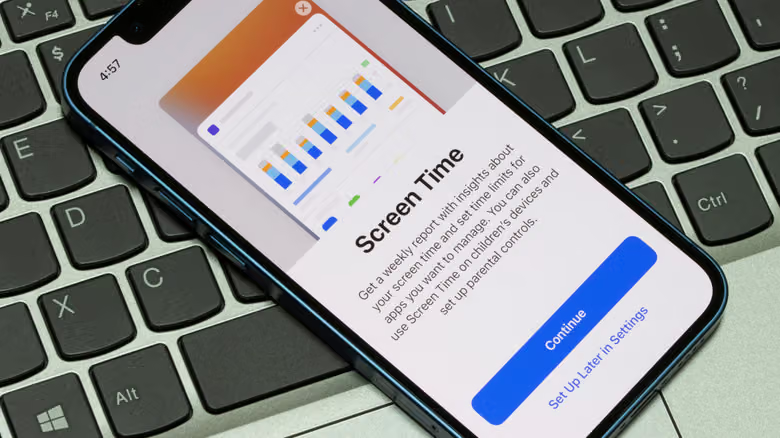
If your goal is just cutting down on distractions rather than hiding apps altogether, iOS has other tools for that too. Under "Settings > Screen Time," App Limits let you cap daily usage for specific apps, and Downtime lets you block access entirely during set hours. "Content & Privacy Restrictions > Allowed Apps & Features" lets you turn off built-in tools like FaceTime or Mail so they disappear from the home screen — a setting often used for kids' iPads, but anyone can use it. And if it's just notification overload bothering you, adjusting settings under "Settings > Notifications" for that specific app is enough — no need to hide the whole thing.