Laptop Speakers Not Enough? Four Ways to Upgrade Your PC Audio
A PC audio upgrade does not require replacing everything at once. External speakers, headphones, home audio and software tuning can each improve the experience according to your space, budget and listening habits.
Desktop computer speakers are almost universally bad, and that's not an accident—it's a choice. Desktop makers typically prioritize graphics cards and processors, leaving built-in speakers with less hardware budget and less room inside the chassis. Laptops have seen some progress, though: HP has partnered with Bang & Olufsen on sound tuning, Samsung owns audio brands like Harman Kardon, and Apple's recent MacBook speakers sound noticeably better than models from a decade ago. The problem comes down to chassis space—no matter how much audio branding is involved, there's only so much room to fit a speaker driver.
That makes going external the only real solution—and there are enough options to leave you second-guessing.
External Speakers: Weighing DACs, Wireless, and Subwoofers
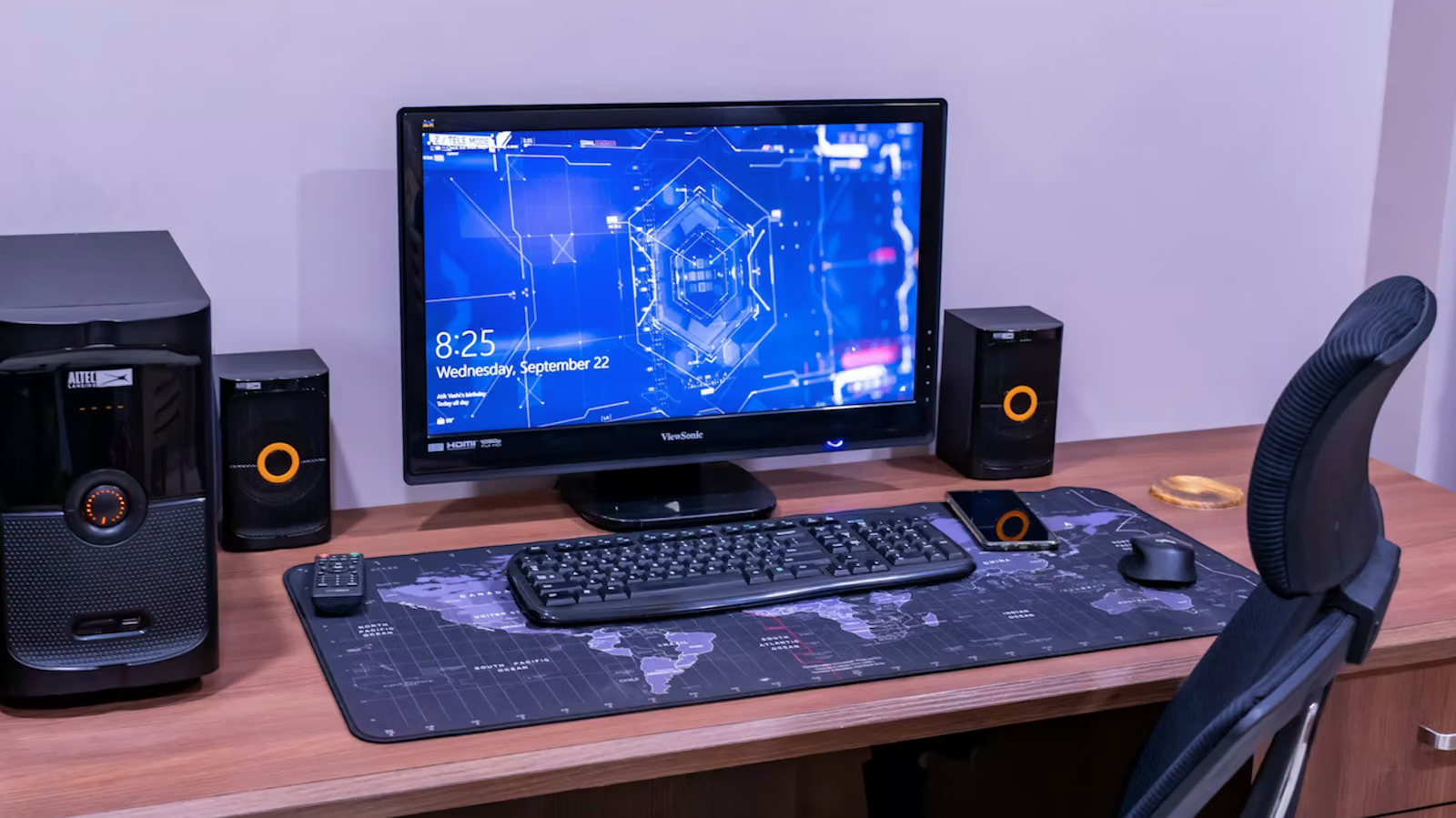
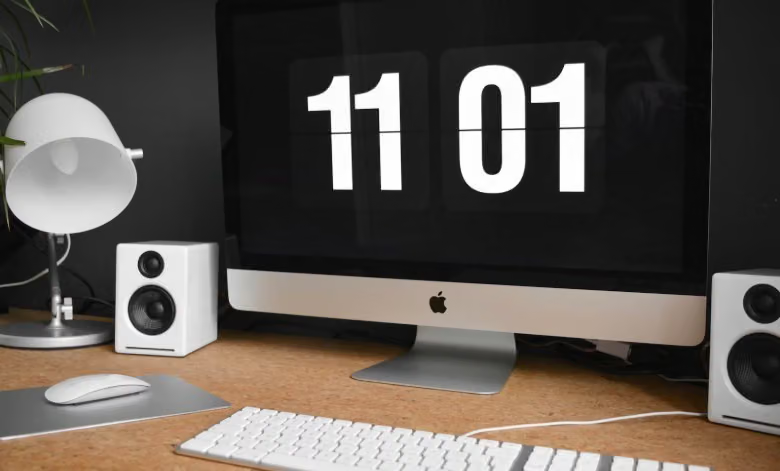
External speakers on the market have long moved past the thin, tinny bookshelf speakers of the past. Some come with a built-in digital-to-analog converter (DAC), which usually means better decoding quality; others go wireless, which is convenient but tends to sound thinner. High-end Wi-Fi speakers generally outperform Bluetooth ones thanks to greater bandwidth. If budget allows, a system paired with a dedicated subwoofer is also worth considering—it boosts low-end performance, and the subwoofer unit itself can be tucked right under the desk without taking up extra space.
Headphones: A Portable DAC Can Make All the Difference
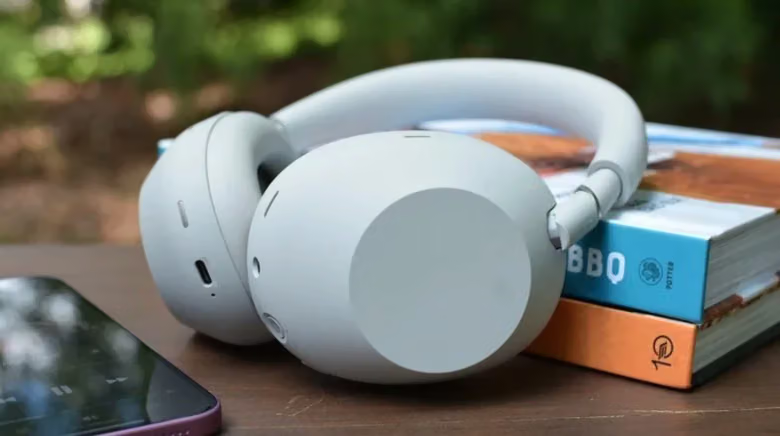
For anyone without room for a speaker setup, headphones remain a practical choice. Most laptops and desktops come with some level of built-in DAC, so a good pair of headphones will work right out of the box—but there's still room to upgrade if you want higher-resolution sound. For wired headphones, consider a portable DAC about the size of a USB flash drive; the sound quality is usually better than a computer's built-in decoding chip. Pair that with a dedicated headphone amp and a pair of open-back or closed-back monitor headphones, and you're close to a top-tier setup. Standard gaming headsets are technically usable, but they're not the best choice if you're chasing sound quality. As for wireless headphones, they've improved a lot in recent years—with built-in DACs and amps, most people honestly can't tell much of a difference.
Hooking Up to a Home Audio System: One Cable or a Wireless Transmitter Set
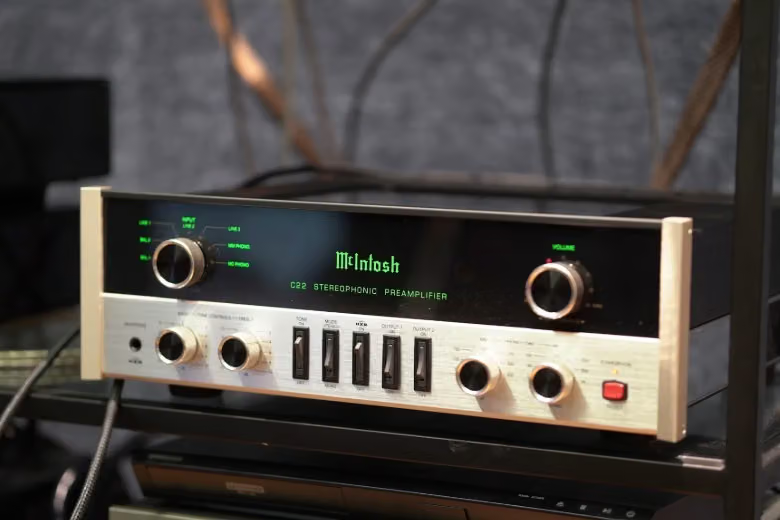
Connecting your computer to an existing home audio system is the most straightforward approach. The simplest method is a 3.5mm-to-RCA cable, plugging one end into the computer's headphone jack and the other into the amplifier's aux input. For better sound quality, plug a dedicated DAC into a USB port and run the cable out from there—many DACs already have RCA outputs, so no extra adapter cable is needed. There are also two wireless options: plenty of home audio systems on the market support Bluetooth for direct streaming, or you can use a wireless USB DAC, with the transmitter connected to the computer and the receiver connected to the speakers or amplifier.
Software Tuning: What EQ and Loudness Tools Can (and Can't) Do
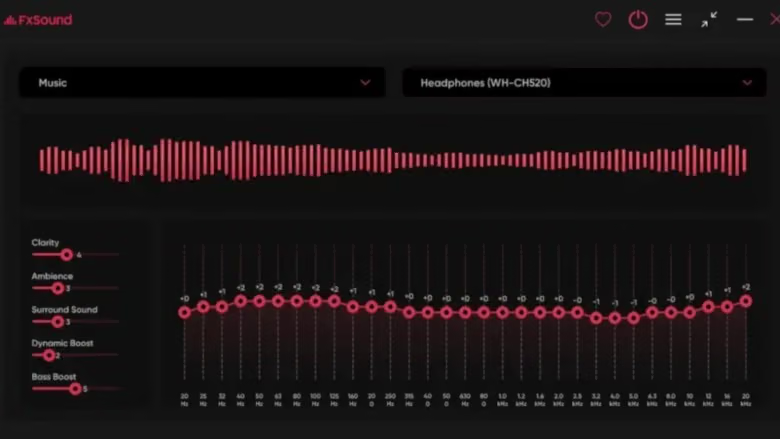
There's no shortage of tools that can step in at every stage of the audio signal on a computer. EQ apps help adjust sound to match room acoustics—if the low end is too heavy in your living room, just dial down the bass on the EQ. Loudness tools like FX Sound, on the other hand, are handy for anyone whose built-in speakers never seem loud enough, pushing them to their limit—though restraint is key here, since cranking the volume too far causes distortion and can damage the speakers over time. There are also plenty of AI audio tools on the market, but these are designed to restore or enhance poor-quality audio—great for salvaging an old cassette tape recording from 1988, but not much help for streaming high-resolution music or standard digital audio files. Some tools use algorithms to measure and adjust sound to match room acoustics, but they usually need a decent microphone to work properly.
Physical Details That Often Get Overlooked
Beyond hardware and software, there are a few small details that easily slip under the radar. The operating system itself is worth cleaning up—delete unused files, avoid running too many programs while listening to music, and consider partitioning the hard drive to keep system files and music files separate. The quality of the audio files themselves matters just as much—no amount of hardware can fix a heavily compressed, low-bitrate file. Lossless formats like FLAC, WAV, AIFF, and ALAC generally sound better than CD quality, at the cost of much larger file sizes that eat up more storage space in your music library.
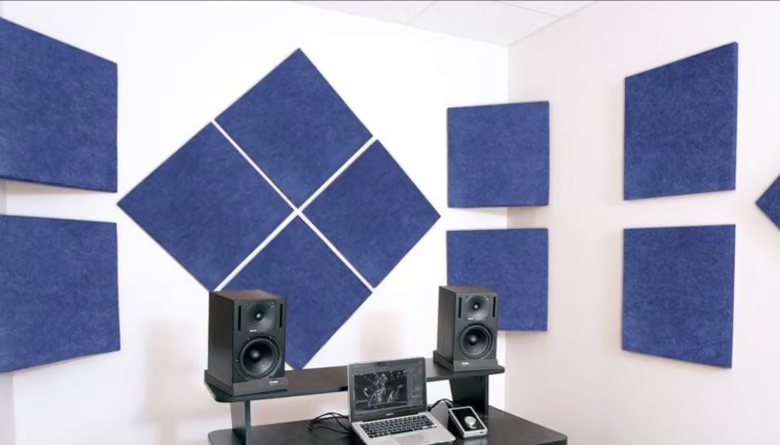
Vibration can also affect the signal—if speakers sit too close to a wall, adding sound-absorbing material and raising them slightly off the desk can help. Some people take it further, placing their setup on server racks, equipment racks, or vibration-dampening platforms alongside acoustic treatment. If you're not using your monitor while listening to music, consider turning it off—LCD screens emit high-frequency noise that's far from pleasant. It's also worth checking the cables connecting your computer to peripheral audio equipment, since a poor-quality cable is an often-overlooked killer of sound quality. If you mainly stream high-resolution music, a wired ethernet connection is more stable than Wi-Fi, helping avoid the jitter or lag that can crop up when streaming large files.