Stop Just Using Do Not Disturb: iPhone Focus Mode Is Actually a Notification Routing System
From Gaming mode triggered by a game controller to Driving mode that auto-replies via CarPlay, iPhone Focus mode has long moved beyond a simple Do Not Disturb toggle — it can precisely filter calls and app notifications based on context.
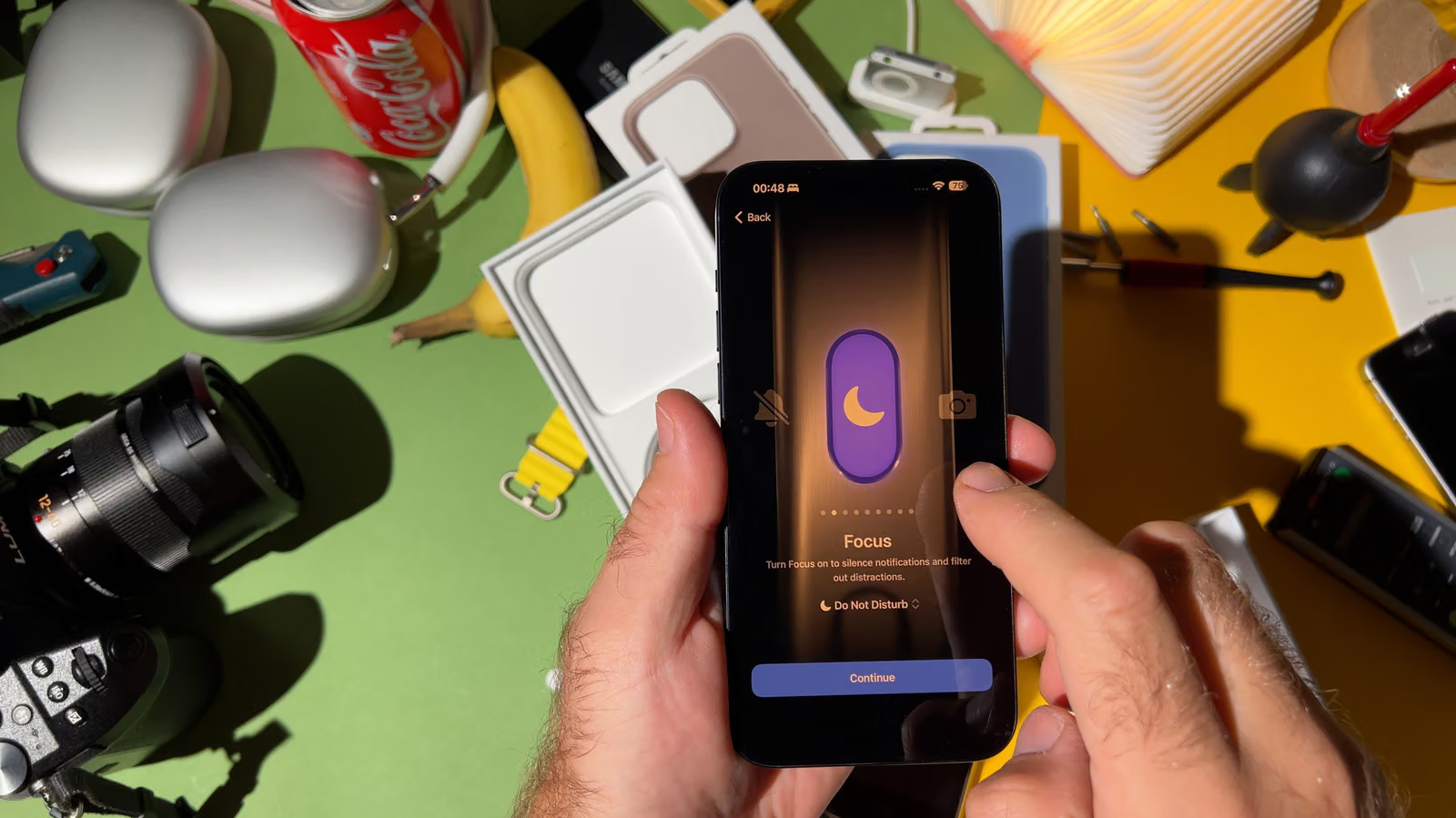
Connect a wireless game controller to your iPhone, and before the game even loads, notifications have already been silenced — this is one of the most overlooked designs in iPhone's Focus mode. Most people still think of this feature as the old-school "Do Not Disturb," but according to tech outlet Engadget writer Ben Stegner, Apple has, since iOS 15 (2021), transformed what used to be a single on/off switch for Do Not Disturb into a full notification management system that can automatically switch based on context.
The setup entry point is the Focus option in the Settings app, which by default lists modes like Personal, Sleep, and Work — each of which can be adjusted individually. Core controls are split into two panels: People and Apps. Each panel requires choosing between "Allow Notifications From" (only let specific contacts through) and "Silence Notifications From" (only block specific contacts). Modes like Sleep work well with the former, keeping only a few important contacts; modes like Work suit the latter, blocking annoying apps while letting everything else through as usual.
The People panel also has "Allow Calls From," letting you choose from Everybody, Allowed People Only, Favorites, or Contacts Only. As long as you don't select Everybody, an "Allow Repeated Calls" toggle appears, letting a second call from the same person within three minutes still ring through — a safety net specifically for emergencies. The Apps panel has "Time Sensitive Notifications," used to let through time-critical messages like calendar reminders or delivery notifications. Toward the end of the basic setup, it's worth turning on "Dim Lock Screen" under Options — once enabled, the lock screen dims, which suits situations where you want to reduce phone-checking or are using it in the dark.
From CarPlay to Game Controllers: The Details Behind Automatic Triggers
Tapping the plus button on the Focus page lets you add more preset modes or build your own. Each preset mode comes with its own independent auto-activation logic: Driving mode can be set to Auto-Reply to messages and automatically activates when connected to CarPlay or car Bluetooth; Fitness mode turns on automatically when a workout starts in the Fitness app on iPhone or on Apple Watch; Gaming mode triggers when a wireless game controller is connected; Mindfulness mode activates by default when opening a mindfulness exercise in the app of the same name; Sleep mode automatically switches based on the sleep schedule set in the Health app.
If the preset categories aren't enough, you can create a Custom Focus. Stegner gives his own example: he set up a mode called "Calls Only," which allows all calls through while silencing everything else. Every mode (except Do Not Disturb) can have its own custom icon and color for easy recognition, and editing or deleting them all happens on the same page.
The Focus main page also has two toggles that are easy to overlook. "Share Across Devices," when turned on, syncs the mode set on your iPhone to other devices signed into the same Apple account, preventing situations where your iPhone is silenced but your Apple Watch is still buzzing; turning it off lets each device's status remain independent. "Focus Status," when enabled, lets contacts see in iMessage conversations that you're currently in a Focus mode — if they think the message is urgent, they can still choose to notify you anyway. However, this feature actually only works within iMessage, and the other person can't see the specific mode name. To turn off this indicator for a specific person, open their name in an iMessage conversation and disable "Share Focus Status."
There's also a feature not included in the Focus menu but worth setting up alongside it: Emergency Bypass. Once enabled, calls or texts from designated contacts will still make a sound even while in silent or Focus mode. To set it up, go to the Contacts app, select a contact, tap Edit in the top right corner, go into Ringtone or Text Tone, and turn on Emergency Bypass at the top. Stegner cautions that this setting should be used sparingly, to avoid less-urgent calls forcing their way through during meetings or moments that call for quiet.